
Understanding Undervolting and Why ThrottleStop Matters
Making your CPU work harder doesn’t always mean it has to run hotter or guzzle more power. Many folks miss the chance to turn down the voltage feeding their processors while keeping solid speeds. This quiet trick cuts heat and power waste. It also helps parts last longer and stops the chip from slowing down when things get tough. With that in mind, A Beginner Guide To Safely Undervolting Your CPU Using ThrottleStop Shows how to tweak this right.
Undervolting means lowering the juice your CPU drinks below its default setting. If you do it carefully, the chip stays stable and even cools off. Intel and AMD CPUs today include safety checks, but manual tweaks give enthusiasts a finer edge on efficiency and temperature control. This matters a lot in cramped laptops and tiny PCs where cooling space is tight.
The perks boil down to two things: keeping heat in check and saving energy. But without the right tools, undervolting can cause crashes and instability. Cooler chips are less likely to shut down or slow themselves when pushed hard. Less voltage also means the battery lasts longer, or your desktop uses less electricity. Gamers, video editors, anyone cranking their system up — they’re after that sweet spot.
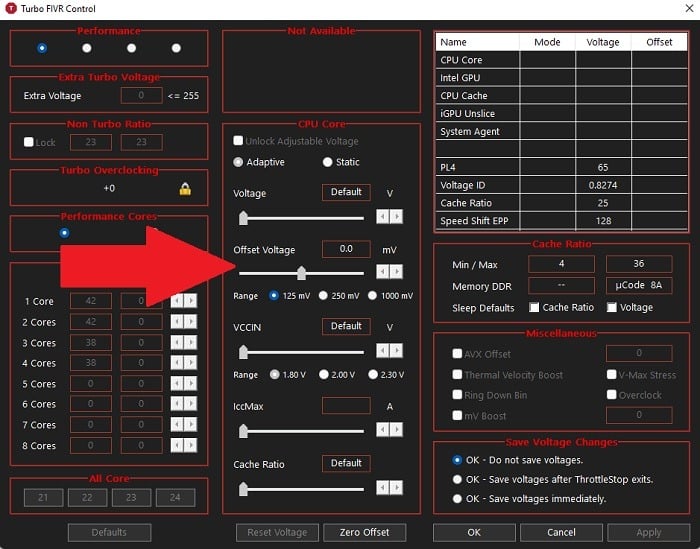
ThrottleStop became the favorite tool for those wanting fine CPU undervolt control. It’s built mainly for Intel CPUs, supporting many generations, with settings you won’t find just in BIOS. The program is light, free, and shows real-time stats while letting you switch undervolt profiles on the fly. It reveals voltage adjustment in tiny millivolt steps, all while keeping safety limits intact.
Here’s the short list: What can ThrottleStop handle?
What Is CPU Undervolting?
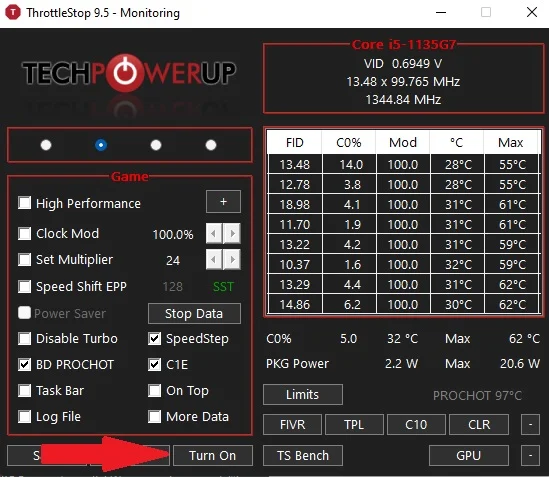
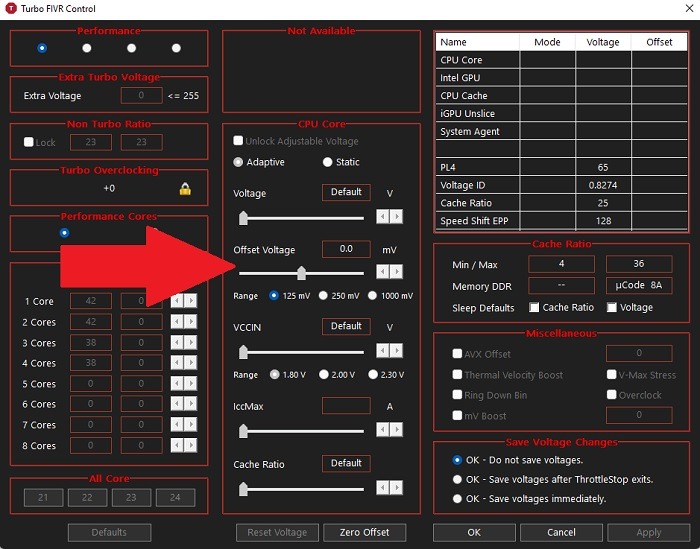
- Voltage Offset: Choose how many millivolts to cut from the CPU core voltage.
- Turbo Boost Control: Decide if the CPU runs full turbo or capped speeds to save power.
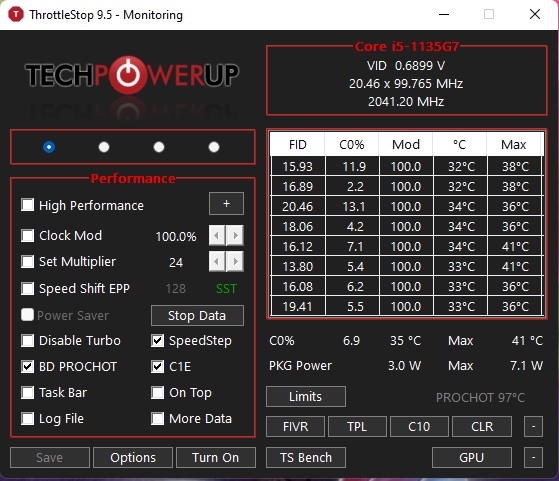
- Thermal Monitoring: Watch temperatures live to dodge damage or forced slowdowns.
- Profile Management: Save custom setups for gaming, idle, or other tasks to toggle fast.
It integrates smoothly with programs such as CPU-Z and HWMonitor, letting you monitor performance and stability while gaming or working. You run ThrottleStop on Windows. Serving as a middle ground between simple BIOS adjustments and risky custom modifications, it open ups advanced CPU tuning options for both hobbyists and professionals.
Knowing how undervolting can extend your PC’s life and boost its smoothness explains why doing it safely matters. This guide eases worries by breaking down the whole undervolt process. The guide leads you through preparation, detailed step-by-step use of ThrottleStop, interpreting monitoring data, all with a focus on maintaining safety throughout.
Clear steps include: From downloading the software to stress testing your setup, the guide covers every base.
- Getting and installing ThrottleStop.
- Setting starting voltage cuts and CPU power states.
- Using Intel Power Gadget and Core Temp to check system stability.
- Learning safe voltage ranges for CPUs as of 2026.
- Tweaking settings little by little to find the perfect balance.
- Handling errors or system crashes calmly.
Addressing these points carefully cuts down rookie mistakes, making undervolting less of a shot in the dark to cool your rig and save power. The goal is to give readers practical steps and cut down guesswork — so their systems stay cooler, quieter, and last longer.
Good undervolting takes time and trial. ThrottleStop offers the tools; this guide brings confidence to use them well. What follows breaks down each part, backed by clear advice and tips, turning undervolting from a scary experiment into a smart upgrade (for the most part).
Introduction to ThrottleStop Software
That’s the intro done. Next up: the full how-to in A Beginner Guide To Safely Undervolting Your CPU Using ThrottleStop, packed with risk-aware info — a must-read for anyone wanting smarter heat and power management with solid hardware know-how and precise software control.
For expert info on CPU power tricks, check out resources like the U.S. Department of Energy’s close look on energy-efficient computing in today’s processors. It lays out the science that drives undervolting at scale.
- Step-by-step walkthrough of using ThrottleStop to undervolt safely
- Safety precautions and risk management for undervolting CPUs
- Troubleshooting common errors and problems with ThrottleStop undervolting
- Visual guides/screenshots of ThrottleStop settings for beginners
Common Concerns and Solutions for ThrottleStop Undervolting
Recognizing CPU Stability Issues After Undervolting
Your system crashes or throws blue screens after you undervolt? That’s almost always a sign you pushed the voltage too low. Instead of cutting corners, increase the voltage offset slowly—try steps of 5 to 10 millivolts—and watch for improved stability. Don’t slam the voltage down too quickly; a sudden drop risks crashing if your CPU can’t handle it.
Addressing ThrottleStop Not Launching on Startup
ThrottleStop sometimes refuses to launch with Windows. The fix? Add its shortcut to the Startup folder. Hit Win+R, type shell:startup, then drop in the shortcut. And keyly: run ThrottleStop as administrator. Without admin rights, Windows may silently block it.
Ensuring Compatibility with Your CPU Model
ThrottleStop targets Intel CPUs specifically. Got an AMD Ryzen? This tool won’t cooperate well. Instead, use AMD Ryzen Master for Ryzen undervolting. Before you begin, confirm your CPU by checking with CPU-Z or Intel Power Gadget.
Safely Resetting Voltage Settings to Default
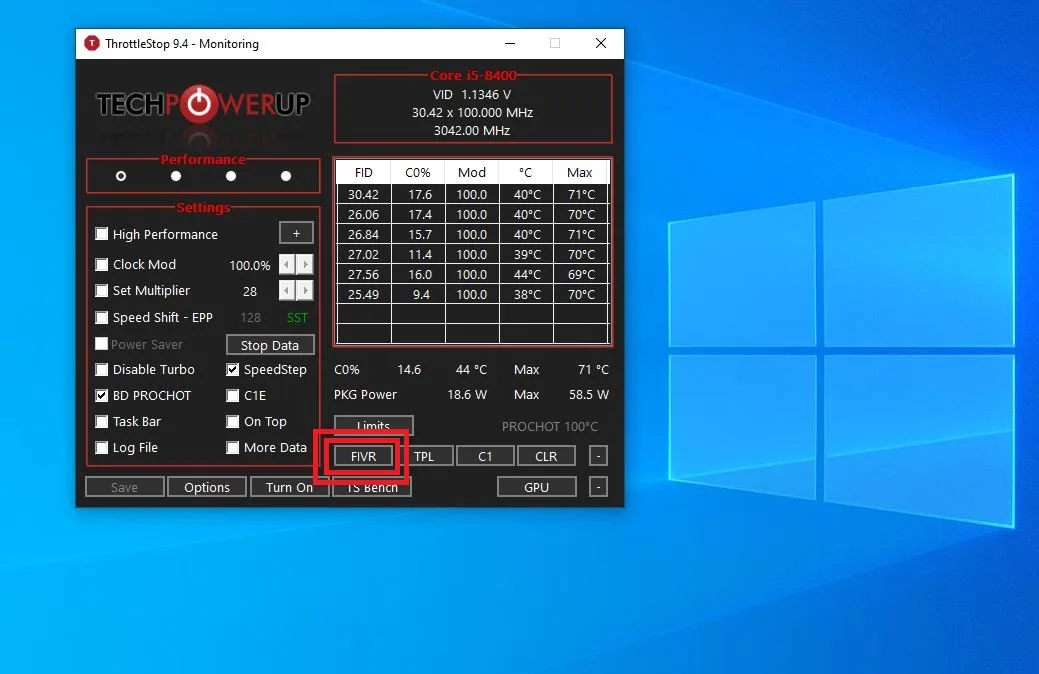
When your undervolt leads to crashes or heat spikes, the “Reset” button in ThrottleStop is your best friend. It returns voltages to default instantly, no reboot needed. Perfect for testing tweaks incrementally while your system remains fully operational.
Preventing Automatic Windows Updates from Overriding Settings
Windows updates don’t always play nice with undervolt setups. Sometimes they overwrite those voltage tweaks or adjust power options behind your back. Disable automatic restarts after updates, and re-verify ThrottleStop’s settings after major Windows upgrades to ensure your changes remain intact.
Monitoring Temperatures and Voltages During Undervolting
For live tracking, pair ThrottleStop with Core Temp or HWMonitor. These apps reveal CPU voltages and temperatures as you work, letting you catch sudden heat surges or voltage drops that might cause throttling or crashes when the load spikes.
Handling ThrottleStop Profile Saving and Loading Correctly
Voltage offsets and multipliers don’t persist unless saved properly in profiles. Save your profile after each change and configure ThrottleStop to reload it at startup. If you skip this, your undervolt evaporates on reboot—forcing manual resets every time.
Removing Conflicts with Other Overclocking Software
Using MSI Afterburner or similar tools alongside ThrottleStop? They often conflict. These apps can overwrite or block undervolt settings. Shut down or uninstall competing tuning software before tweaking ThrottleStop to avoid tangled CPU power controls.
Recognizing the Limits of Undervolting Benefits
Undervolting reduces power draw and CPU temperature, but it won’t increase raw clock speed. You get cooler temps and more stable clocks, not improved benchmark scores. Push the undervolt too far and expect instability. The goal is a sweet spot: less heat without crashes.
Adjusting Turbo Ratios Alongside Voltage for Efficiency
ThrottleStop lets you tweak CPU multiplier ratios too, balancing speed against power consumption. Slightly lowering the turbo ratio along with your undervolt can drastically cool laptops or compact PCs struggling with heat. Use CPU-Z and Intel Power Gadget to confirm clock speeds as you tweak volts.
Fixing ThrottleStop Not Detecting CPU Features
If ThrottleStop misses CPU info or skips features, your version may be outdated. Recent updates provide support for newer Intel chips unveiled in 2026. Check TechPowerUp forums or official docs for the latest releases to keep your CPU properly recognized.
Avoiding Risks by Making Incremental Adjustments
Slash voltage in big jumps and you risk crashes or hardware stress. Tread carefully: reduce voltage bit by bit, then test with stress tools like Prime95 or Intel Burn Test. This slow approach balances power savings against reliable stability during gaming or work.
Maintaining ThrottleStop Profiles after System Restarts
ThrottleStop doesn’t reload undervolt profiles by default. Use the Startup folder trick or schedule tasks to auto-launch the app with your saved profile after reboot. Otherwise, you’ll lose undervolting every time the system restarts, requiring constant babysitting.
Combining Intel Extreme Tuning Utility (XTU) Features with ThrottleStop
Intel XTU offers extra options: overclocking, thermal monitoring, stress testing. ThrottleStop focuses on undervolting. Using both tools gives you a fuller CPU tuning toolkit and helps verify stability under strain.
Dealing with CPU-Z Reporting Voltage Spikes
CPU-Z can show brief voltage spikes jumping unexpectedly due to CPU load bursts, even after an undervolt. These spikes are normal and not a failure. Instead, focus on average voltages and temperature trends with HWMonitor or Intel Power Gadget—they deliver a steadier picture.
Ensuring Administrator Privileges During Undervolt Setup
ThrottleStop needs admin rights to adjust CPU voltages. Always right-click and choose “Run as administrator” unless you configure it to run improved by default. Without admin access, Windows may ignore undervolt commands without any warning.
Responding to Performance Drops After Undervolting
If apps or games slow unexpectedly post-undervolt, your voltage might be too low, forcing CPU turbo frequency throttling. Increase your voltage offset slightly or raise turbo multipliers in ThrottleStop to restore performance while still saving power.
Avoiding Data Loss by Backing Up ThrottleStop Configurations
Found a stable undervolt? Export and back up your ThrottleStop configurations immediately. Crashes or software bugs can wipe your settings. Store backups off your main drive to reload after Windows reinstalls or hardware changes.
Identifying When to Revert to Stock Voltage Levels
Random shutdowns, strange audio glitches, or USB disconnects? Those can mean your undervolt isn’t safe. Use ThrottleStop’s reset or uninstall it to return to stock voltages and protect your hardware from damage caused by unstable tweaks.
Planning Undervolt Adjustments with MSI Afterburner
MSI Afterburner primarily tunes GPUs but monitors CPU temps and voltages too. Running it alongside ThrottleStop lets you track both GPU and CPU thermals simultaneously—a must for gaming rigs where heat hits both processors hard.
Checking CPU Temperature Accuracy with Core Temp
Core Temp logs detailed thermal data and helps confirm if undervolting is lowering heat as expected. If temperature changes don’t align with voltage adjustments, your sensors may be faulty, or deeper hardware issues might lurk.
They guide you toward stability, compatibility, and safety as you carefully lower CPU voltages. Each of these tips addresses real headaches new undervolters face with ThrottleStop. Official guides and documentation provide further details—offering a reliable foundation for effective undervolting.