How To Disable Unnecessary Startup Programs To Speed Up Windows Boot Time
Why Disabling Startup Programs Matters for Windows Performance

Booting up a Windows PC can drag. The delay isn’t just annoying—it shows something’s getting stuck under the hood. Startup programs, those that fire up the moment Windows pops open, often hog CPU, RAM, and disk time. They grab resources that should speed your machine up, not slow it down.
Over time, startup lists bloat. New installs sneak in apps set to launch automatically (as a rule). Each one adds seconds—sometimes minutes—to boot time by throwing extra work at your processor and disk right away. You might watch the desktop hold its breath while background tasks buzz in the shadows. That mix drags down more than boot speed; it can sap general system smoothness.
Cutting unnecessary startup apps is key to regaining your PC’s speed. Shutting these off slices load on CPUs and drives. This matters especially if your box has a spinning hard drive—slow to react compared to solid-state drives. Less startup clutter also frees RAM and eases input/output jams, making multitasking less of a slog.
Here’s why you want to trim that startup list:
- Boot times tick down as fewer apps fight for CPU attention.
- Hard drive or SSD stress eases during startup, slowing wear and delays.
- System runs steadier and snappier with more free memory and processor cycles.
- Less chance of software crashes or weird glitches from shadow programs.
- On laptops and tablets, you squeeze more battery out by killing power-hungry apps at launch.
Think chat clients, cloud sync tools, or silent update checkers—quiet but hungry for resources. Many apps want to be ready ASAP, so they auto-start. Even beefy machines can slow by 30 seconds or more if these pile up like junk mail.
Why Startup Programs Slow Down Your Windows Boot

Windows Task Manager (in Win 10 and 11) hands you control to see and nix them instantly. Many users never bother to check their startup programs, enduring long waits or resorting to new hardware when a few clicks could speed things up. Knowing what to disable transforms lag into speed.
With fewer tasks tussling from power-on, apps pop open quicker, background chores finish earlier, and heavy software—games, editing tools—runs with less hitching. It’s not just about getting past the login screen faster. Windows feels sharply tuned, not clunky (as a rule).
The hardware digs it too. Drives face less frantic read/write pressure, which jumbles less and lives longer. CPUs and RAM cool off because they juggle fewer jobs at once, so parts wear out slower. These hardware wins pair with the immediate software perks. The benefits add up.
Whether you’re a sysadmin or a casual user, sneaking in this cleanup boosts daily work and system health. Grasping why startup apps choke boot times means you can act before things ossify. It’s not guesswork, but clear, effective steps matching your machine’s profile.
For extra detail on how Windows handles startups and the toll on hardware, Microsoft’s docs break down the system gears and offer solid ground for power users and troubleshooters: Microsoft Windows Startup Overview.
How to Disable Startup Programs in Windows 10
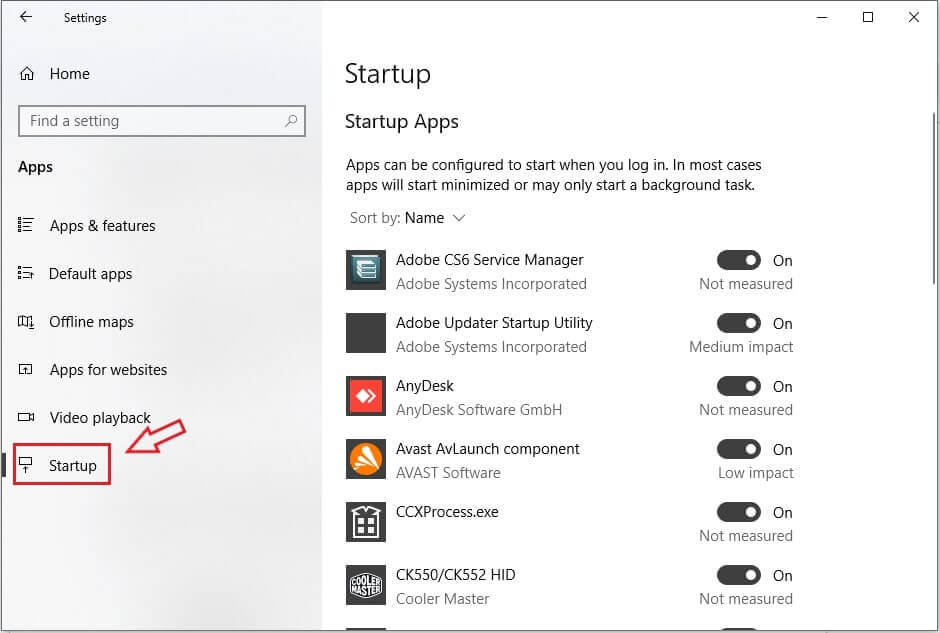
- Physical step-by-step visual guides for disabling startup programs in Windows 10 and 11
- Explanation of impact of startup programs on hardware components and boot time
- Advanced troubleshooting for startup program issues causing slow boot
- Risks and side effects of disabling certain critical startup programs
Step 1: Identify Unnecessary Startup Programs
- Open Task Manager to view startup impact. Press Ctrl+Shift+Esc or right-click the taskbar, then select Task Manager. Switch to the Startup tab to spot programs that launch at boot. Each lists an impact level: High, Medium, or Low.
- Focus on programs with High impact. These hungry apps drain CPU and disk resources right when Windows starts. They’re the usual slowdown culprits.
- Check publisher and description for clues. Hover over or right-click a program, then choose Properties. This reveals if it’s core system software or a third-party add-on quietly riding along.
- Spot unfamiliar or unused software. Strange names or tools you rarely open? These are prime candidates for disabling. Turning them off releases RAM and speeds your boot without breaking daily workflows.
- Cross-check with System Configuration (msconfig). Hit Win+R, type msconfig, and press Enter. The Startup tab here shows some older programs that Task Manager might miss. This is especially helpful on Windows 10.
- Look at impact ratings in msconfig too. It lists a similar “startup impact” column. Disable the heavy hitters first to feel the biggest difference.
- Tailor choices to your hardware. Slower drives and small RAM make every program count. Even Medium impact apps can bog down budget laptops.
- Test boot times after disables. Turn off one app, reboot, then time the startup. Repeat until you spot the real bottlenecks hiding in your setup.
- Leave core services alone. Antivirus software, input device drivers, and sync tools usually need to stay on. Disabling them risks crashes or security gaps.
- Hunt down optional updaters and utilities. Many launch at startup for no good reason, wasting capacity and extending boot time with minimal benefit.
- Third-party suites like Adobe and Steam often auto-launch too. Their autostarters clutter your boot but are usually safe to disable if you start the programs manually later.
- Use Resource Monitor for live load tracking. Run resmon from Win+R. Watch the CPU and disk tabs as Windows boots and match heavy processes with startup items to pinpoint resource hogs hiding in plain sight.
- Keep a log of disabled items. Write down what you turn off so you can quickly roll back if disabling breaks a needed program.
- Watch for sneaky new startup entries. Updates and fresh installs sometimes add themselves silently. Regular checks help catch these surprise guests.
- Review startup settings after reboots and updates. Windows patches and software installations often reset startup choices without asking. Routine audits keep your boot lean over time.
This method carves out a sharp, data-driven shortlist to trim. Windows’ built-in tools like Task Manager and msconfig offer detailed control over startup programs (give or take). Considering your hardware keeps you from cutting vital services that backfire.
Using these tactics often shaves precious seconds from boot times while preserving essential services—simplifying daily launches with caution and clarity. Microsoft’s official docs provide deeper dives into startup mechanics and performance tuning.
Step 2: Disable Startup Programs Using Task Manager

- Open Task Manager
Hit Ctrl+Shift+Esc at the same time. Task Manager pops up right away. No need to hunt through menus or type anything. It’s the quickest hack to see what’s running.
- Switch to the Startup Tab
Look up top inside Task Manager and tap the “Startup” tab. A list will show all the programs that wake up when Windows boots. Next to each, you’ll see a status and how much they slow down startup.
- Review Startup Impact
Check the column labelled “Startup impact.” Programs get tagged Low, Medium, or High here. This tells you which ones are gobbling resources early on and dragging your boot time down.
- Select a Program to Disable
Click any program name to highlight it. Pick apps you don’t need launching every boot, stuff you barely touch. But watch out—turning off things you don’t know can break your system or cause errors.
- Click the Disable Button
When your choice is lit up, press the “Disable” button in the bottom right corner. That nixes it from running at startup but leaves it installed—just pauses it from auto-firing next time.
- Repeat for Multiple Programs
Go through the list and disable more unneeded programs. Target the high-impact ones first, since those shave more off boot time. No need to kill everything, just the big slowpokes.
- Close Task Manager and Restart
Quit Task Manager and reboot your machine. Compare how fast it powers up now versus before. This shows if your tweaks made a real difference or if you missed a troublemaker hiding in plain sight.
- Re-enable if Necessary
If a disabled program hobbles your workflow or causes issues, jump back in Task Manager, pick it, and smack “Enable.” You can always reverse changes without risking anything.
- For Windows 11 Users: Use the Start Menu
Windows 11 also lets you manage startups through Settings, but Task Manager is still the speediest path. Just press Ctrl+Shift+Esc like usual, and follow the same steps. It shows impact clearly and saves clicks.
- Confirm After Each Change
Try disabling one or two programs at a time, restart, then check results. Moving methodically pinpoints exactly which app’s removal helped or hurt boot time.
It works right inside Windows’ own security sandbox, no registry hacking needed. Using Task Manager to handle startup programs gives you fine control without installing extra software.
If you want to speed up your PC’s boot further, this tool makes resource use upfront visible. Disabling apps that aren’t mandatory keeps your system stable and avoids crashes.
Keep in mind, some obscure startup entries belong to hardware drivers or antivirus tools (by and large). Those keep your system safe or functional—don’t just switch them off blindly.
Both Windows 10 and 11 deliver consistent, easy controls for this job without deleting anything permanently. Flipping slow or unwanted startup programs off tidies your boot sequence, boosting speed and overall responsiveness by cutting background noise.
Going slowly, testing after each change, means you get real feedback and stay safe. You’ll learn which programs drag your system down and keep everything running smoothly while trimming delays.
How to Disable Startup Programs in Windows 11

Fewer programs firing up at once lightens power draw and eases stress on drives and memory. A lean startup setup doesn’t just mean faster boots—it can also stretch hardware lifespan.
For a closer look at what those startup impact labels mean and how Task Manager has changed over time, check out Microsoft’s official guide here: Microsoft Task Manager official guide.
Step 3: Alternate Methods to Disable Startup Programs
- Use the System Configuration Tool (msconfig)
This old Windows tool gives a simple way to stop startup apps without extra software. Press Win + R, type msconfig, hit Enter. In the Startup tab, which on Windows 10 and newer jumps to Task Manager’s Startup section, or directly lists services on older versions, you’ll see programs set to run at boot. Uncheck the ones you don’t want. Msconfig avoids accidentally deleting key files and shows a clear list of what kicks in during startup.
- Disable Startup Programs via the Settings App
On Windows 10 and 11, Settings has a user-friendly way to control startup apps. Open Settings with Win + I, then head to Apps > Startup. You’ll find all apps registered to open automatically here. Flip their switches off to disable them. This is good for folks who like simple, touch-friendly screens without digging through system menus. It also sorts apps by how much they slow down booting, making it easier to pick which to turn off.
- Edit the Windows Registry Editor
Editing the Registry gives deep control but requires care. Run regedit via the Run box. Look under HKEYCURRENTUSER\Software\Microsoft\Windows\CurrentVersion\Run and HKEYLOCALMACHINE\Software\Microsoft\Windows\CurrentVersion\Run—each value is a startup program. Right-click and Delete the ones you don’t want. But back up the registry first, because deleting the wrong key can break Windows badly, maybe needing repair or a full reinstall. Dangerous territory.
- Use the Task Scheduler to Manage Startup Tasks
Some programs don’t appear in startup lists but launch through scheduled tasks at login. Open Task Scheduler from the Start menu. Check the Task Scheduler Library for entries set to trigger at logon. Disable or delete any unwanted tasks. This helps catch programs that hide outside the usual startup spots and quietly slow your boot.
- Remove Startup Shortcuts in the Startup Folder
Windows keeps an old Startup folder where shortcuts start apps automatically. Open it by typing shell:startup into the Run box. Delete shortcuts here for apps you want gone. This hands-on method lets you see and control simple startup programs without touching global system settings.
These methods back up Task Manager in controlling startup programs, fitting different skill levels and Windows versions. Task Manager handles most startup tweaks well, but turning to msconfig, Registry Editor, or Task Scheduler can resolve more hidden or persistent boot delays. Take it slow: disable programs one by one, then measure boot time to avoid accidentally stopping needed Windows or software processes (in most cases).
Always back up key files and create a restore point before making changes. Tweaking the registry or Task Scheduler carries risks that could crash your system if done wrong. Only disable programs you know or have checked on; removing essentials can ruin your system.
The Startup folder stays handy for legacy apps. Mastering these options gives you power over everything that auto-launches when Windows boots, cutting down slowdowns and making startups smooth again. Windows 11’s Settings app shines at spotting startup apps with high boot impact scores. The registry offers fine-grain control, but only if simpler options fail.
Altogether, these methods cover all the angles needed to speed up boot times in 2026’s Windows versions—including quirks and deep system hooks Task Manager won’t show. For smart registry backup tips and full tweak guides, check Microsoft’s official docs here: Windows Registry Documentation.
Tips to Manage Startup Programs Effectively
Sometimes, what looked useless before suddenly turns essential after a patch or update. Make it a habit to inspect your startup list every few months. Keeping this list cleaned up helps you avoid unexpected slowdowns or failures when you least expect them.
These hold the core functions together—things like networking, security, and hardware management. Never disable entries flagged as “essential system processes” by Microsoft. Turn them off, and your PC might fail to boot or crash unpredictably. If you don’t recognize a process name, research it first before making a move.
High-impact apps can add dozens of seconds or more. Task Manager’s “Startup impact” column gives you a quick look at which programs weigh down your boot sequence. Tackling these first often yields the clearest speed boost. Saves time.
Switch programs off carefully, one by one. It’s especially important after installing new software that stealthily adds itself to startup. Don’t just disable everything all at once. This helps you catch which app causes hiccups or lag.
Pick only programs with solid reputations. Some third-party tools advertise startup cleaning, but most are junk. Many sneak in extra bloat or reset configurations without warning. Trusted cleanup apps create backups and give you a rollback option if things go sideways.
Using MSConfig to Manage Startup Programs

If you accidentally break something key, that restore point saves you hours of headaches. Create a system restore point or full backup before disabling several startup items at once.
Keep track of your boot time after each tweak. Windows 10 and 11 offer detailed timing tools like Event Viewer’s Performance Logs—these measure startup durations down to the millisecond. Without data, you risk unnecessary changes or missing the real bottlenecks.
Beware—some programs silently re-add themselves to startup after updates or reboot. If a disabled app returns, dig into its own settings to stop it from auto-launching every time.
Turning these off without carefully chosen alternatives can slow system responsiveness or leave security gaps. Cloud sync apps, antivirus software, and device drivers depend on launching early.
Mistakes here can lead to hours of troubleshooting you don’t want.
Risks of Disabling Critical Startup Programs
Managing startup programs well takes patience and careful research. The payoff is faster boots without losing critical services. Monitoring your startup keeps daily frustration low and extends your hardware’s usable life span. For those who want the nitty-gritty, Microsoft’s developer docs dive deep into background tasks during boot: Windows Driver Startup Documentation.
Common Concerns When Managing Startup Programs on Windows
Understanding the Risks of Disabling Essential Startup Programs
Not every startup program is useless. Some are core Windows processes or drivers that ensure your hardware performs correctly. Turn them off without knowing what you’re doing, and you might disable devices or stop critical security features from loading on time. This can be serious.
Using System Restore Points to Recover from Startup Changes
Save a System Restore point before toggling startup apps off. It acts like a snapshot of your settings. If your PC won’t boot or glitches after your edits, you can roll back. This avoids reinstalling Windows or chasing down complex fixes.
Impact of Startup Program Changes on Overall System Performance
Cutting startup programs frees CPU cycles and reduces disk activity, which can speed boot times considerably. The actual gain depends heavily on your machine’s specs, how many services run in the background, and the Windows version. A PC cluttered with heavy startup apps sees a larger boost than a system that’s already slim.
Avoiding Startup Program Conflicts and Errors
Some programs depend on others to launch correctly at boot. Shutting down one “unimportant” app might crash many or freeze the system. You need a clear grasp of each startup item’s role before flipping switches.
Tools to Track and Control Startup Impact in Windows 10 and 11
Task Manager lists startup programs and rates their impact as High, Medium, or Low. This rating aids your decision about which apps to disable first. For a deeper dive, Autoruns uncovers hidden or scheduled-start apps that Task Manager skips.
Restoring Disabled Startup Programs Without Resetting the PC
When you disable programs in Task Manager or Settings, they remain off until re-enabled. Flip the toggle in the startup tab to reactivate any app. This makes testing safer, ensuring you don’t break something permanently.
Hardware Considerations: Effects of Disabling Startup Apps on CPU and Storage
Startup programs often drive CPU spikes and prompt spins or reads/writes from HDDs and SSDs, even ping network gear. Killing heavy or needless startups reduces these bursts early on. Over time, this can lower wear on drives and trim power consumption.
Avoiding Performance Penalties by Disabling Security Software at Startup
Certain antivirus or firewall applications boot with Windows to block threats instantly. If you disable them, your PC could stay vulnerable during startup until you manually re-engage protections. Think twice before cutting security tools loose.
Assessing Which Startup Programs Are Truly Needed
Background updaters or cloud sync clients appear on many startup lists. They don’t always need to run right away but often keep files synced or software current. Consider how frequently you rely on those features before turning them off.
How Startup Program Load Times Influence User Experience
Apps with heavy startup footprints delay your desktop’s readiness, making you wait longer. Removing these slowpokes speeds up logins, especially on cheaper or older machines. The improvement can be surprisingly obvious.
Repercussions of Disabling Vendor-Specific Hardware Utilities at Boot
OEM utilities manage components like touchpads, function keys, or screen brightness. These run quietly in the background until stopped—if they don’t start early, hotkeys might fail or power settings get messed up.
Using Windows Event Viewer to Diagnose Startup Issues Caused by Disabled Programs
If your PC behaves oddly after disabling startup programs, check Event Viewer. It logs errors and warnings linked to startup tasks. These logs pinpoint which program broke or conflicted, letting you troubleshoot without reinstalling.
Scheduling Startup Program Changes When Modifying Multiple Systems
Handling many PCs at once? You can use Group Policy or WMI scripts to schedule disabling startup apps remotely. This automates the process, keeps systems consistent, and cuts down manual labor.
Managing the Balance Between Startup Speed and Background Functionality
Disabling every non-Windows startup app might speed boot but kill useful background features. Cloud backups, chat notifications, and other services often rely on launching immediately with Windows. It’s a trade-off: faster startup or ready-to-go services.
Recognizing Hidden or Scheduled Startup Tasks Affecting Boot Performance
Some programs slip in via scheduled tasks or registry keys that Task Manager doesn’t reveal. Tracking these down exposes hidden slowpokes. You’ll need advanced tools or PowerShell to disable or erase them.
Startup program management shapes your Windows boot speed but demands care and clear judgement. Microsoft’s official support pages offer detailed guides on managing startup applications. Follow them to speed startup without breaking essential functions or security.