Chrome, Firefox, and Edge remember your logins and fill them in automatically. Saving passwords in your browser seems handy. Logging in becomes a snap. But this ease hides serious dangers.
That leaves your passwords open to many attacks. Browsers keep passwords locally or on the cloud, but often without the strong encryption found in real password managers. Malware like keyloggers can snatch saved passwords easily. If your device is hacked, attackers grab every stored login—one break, many accounts exposed.
But every new device adds another chance for hackers to get in. Syncing passwords across devices sounds convenient. Crack one device or your browser account, and all passwords may leak. Tricks like phishing can persuade users to hand over master passwords or open up vaults. The risk grows fast once syncing is on.
They hunt for security flaws during slow update cycles. Browsers lag, sometimes leaving users vulnerable for critical stretches. Sneaky websites or malicious extensions have exploited these weak spots to steal passwords silently. Real password managers patch encryption flaws quickly.
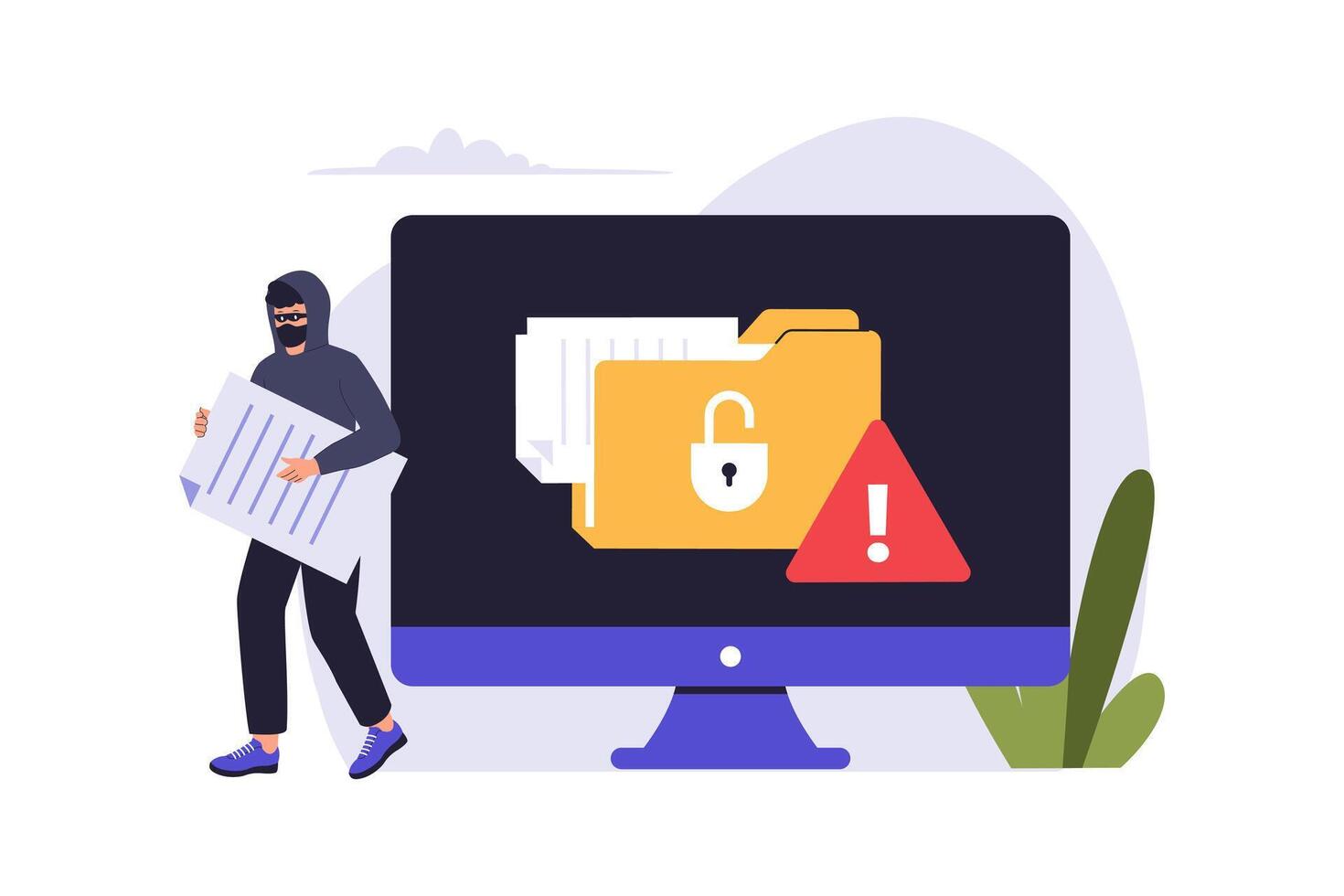
Storing passwords in browsers has led to data breaches resulting in identity fraud, unauthorized transfers from bank accounts, and exposure of confidential personal or business documents. The fallout can be severe. Counting on your browser alone creates a weak security chain with multiple breaking points.
Risks of Storing Passwords in Browsers
Third-party password managers encrypt vaults right on your device. Many include two-factor authentication (2FA) and tools to flag weak or reused passwords. But safer options do exist. They require a master password that never leaves your hands. Their zero-knowledge setup means even the company can’t peek inside.
They isolate passwords from browser risks while syncing across devices through hardened, purpose-built channels. Switching to these tools boosts security big time. This split cuts down risks and keeps your credentials locked tight.
Here’s why browser password storage is risky, boiled down:
Weaker encryption than specialized tools
Easy targets for malware on your device
Sync features broaden attack chances
Exploits in browsers and harmful extensions
Big dangers if sensitive data gets stolen
Users must move to dedicated password managers to stay ahead of evolving cyber threats. In short, browser managers offer quick convenience but fall short on solid security. This smarter move protects your accounts and handles real-world challenges better.
For a close look into these risks and safer practices, check out the National Institute of Standards and Technology (NIST) Digital Identity Guidelines. They stress the need for locked-down vaults and multi-factor authentication, steps browsers often miss.
How Browser Password Managers Work
Security Risks of Browser Password Storage
It seems simple, fast even, but that ease comes with serious security traps (give or take). Lots of people stash passwords right inside their browsers. Browsers offer autofill convenience, sure, but behind that smooth surface lurk hidden holes hackers pry open in 2026’s tangled online wilds.
Autofill Attacks target browser-saved passwords directly. Crooks craft sites that trigger autofill silently, no alert to you. These attacks twist browser quirks—no need for keyloggers or malware anymore—to grab logins mid-fill. Once passwords drop into fields, sneaky scripts scoop them up quietly, often causing account takeovers and massive data leaks.
Phishing schemes get craftier thanks to browser password managers. Fake pages mimic the real ones exactly, and browsers sometimes fill passwords without checking if the site is legit. This flaw lets attackers snag credentials sent to wrong domains. Most browsers never double-check if the URL fits the password’s home, leaving doors wide open for leaks.
Unauthorized Access spikes if your device gets hacked. Malware, ransomware, or stolen laptops hand criminals quick routes to browser passwords. Sure, passwords encrypt, but the keys? Often they stick around your device. Crack your local profile or exploit security flaws, and hackers grab passwords with little sweat.
Sometimes it’s behind the curve. Newer browsers lock vaults tight, but older or badly set up ones leave passwords exposed. Encryption often ties to your OS login protection, but a weak or bypassed login means your passwords can spill. Banking solely on browser encryption?
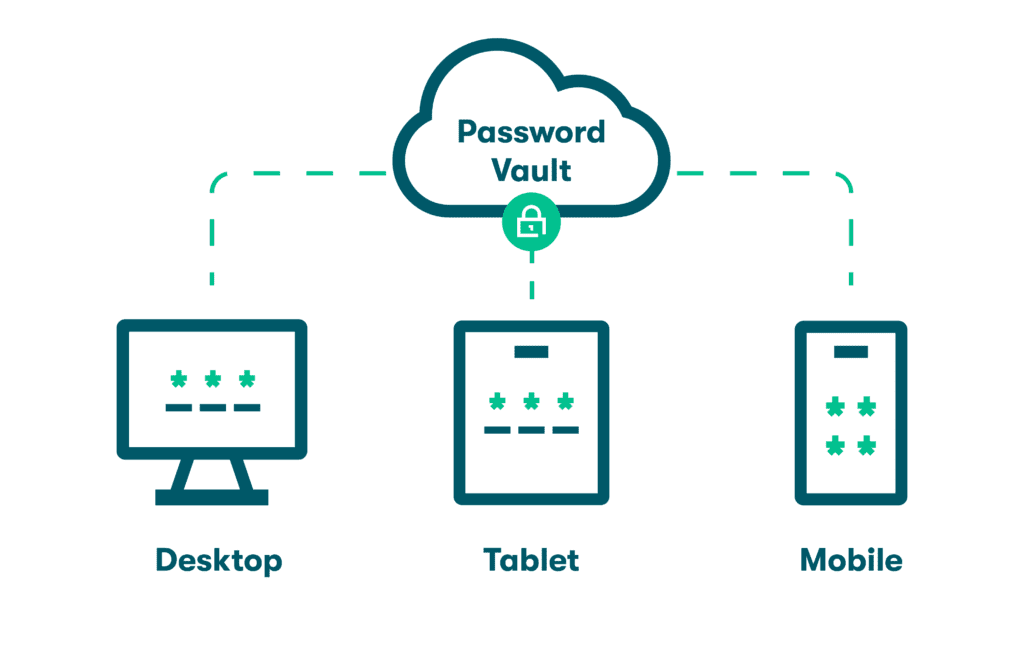
Syncing passwords across devices boosts risk. Browsers push password vaults across clouds for easy reach anywhere. Here, attackers can catch passwords mid-sync or break into cloud accounts holding them. Bugs or dodgy shared networks leak data—more devices joined means more weak spots.
Missing Multi-Factor Authentication (MFA) in browsers cuts defenses. External password managers layer MFA on top of passwords. Browsers usually skip MFA, relying just on device locks. This single crack widens attack routes and lifts odds that sensitive accounts get hijacked.
Recovery and export features bring fresh hazards. Browsers let you dump passwords into plain text files. If those files fall into wrong hands or users handle them carelessly, they become sitting ducks. Unencrypted sharing and phishing against exported passwords caused rising leaks through 2026.
Browser extensions sometimes poke at stored passwords or fire autofill off. Malicious or hijacked extensions sparked multiple headline credential breaches. Browsers rarely fence off password data fully from add-ons, leaving a clear pathway for attackers.
All this adds up: browser password storage is shaky and risky. Browsers trade security for quick convenience (in most cases). Credentials end up exposed to remote hacks and local break-ins alike. Experts push people toward dedicated password managers that isolate, encrypt, and clamp down on password access tightly.
Business and personal accounts both face rising threats. Weak encryption, sloppy URL checks, and leaky syncing turn browser storage into a playground for crafty hackers. Knowing these risks means users can switch to safer tools built with strong cryptography, zero-knowledge designs, and tight access controls.
Security rules keep tightening. The National Institute of Standards and Technology (NIST) now pushes serious password managers over browser defaults. Their guidelines back tools with secure vaults, MFA, and phishing defense—all missing in browser-built options.
Relying just on browser password managers isn’t enough in 2026’s threat world—proof why storing passwords in your browser is a bad move and why you must use alternatives. Purpose-built password managers aren’t just nice to have anymore; they’re essential to lock down your online life and guard your accounts against a hostile web.
Safer Alternatives to Browser Password Storage
Browser password storage feels easy, but it’s risky. Many people don’t realize better options exist that seriously boost protection from hackers and leaks. Knowing about password managers, hardware keys, and biometrics builds a stronger defense for your personal security.
Apps like alternative options, competing platforms, and comparable services lock down passwords across sites and devices. Password managers take center stage as a real upgrade to browser vaults. They encrypt data on your device before syncing anywhere, so even if the server is hacked, your info stays safe. Some offer free plans with limits, while paid versions at $3 to $5 a month add perks like breach alerts and syncing on multiple gadgets (by and large). By helping generate strong, unique passwords for every login, these tools dramatically reduce risks from reused passwords—something browsers infrequently support.
Physical security tokens bring a new level of defense beyond software. Gear like YubiKey or SoloKeys uses U2F or FIDO2 to prove who you are with cryptographic keys. They plug in via USB, NFC, or Bluetooth and need you there to approve login. Stolen passwords alone won’t get in. Hardware keys block phishing and replay attacks better than passwords by themselves. Expect to pay between $25 and $70. Many users combine them with password managers for a powerful two-factor setup.
Biometrics can’t replace password storage but add a strong extra step, often built into secure vault apps. One catch: if your device breaks or gets stolen, you’ll need backup ways to open up accounts. Fingerprints, face scans, or iris recognition use your unique body traits hard to copy from afar. Modern phones and laptops often open up encrypted password stores this way, ditching master passwords. Turning on biometrics in password apps speeds access while still meeting multi-factor rules that many security policies require.
Pick a well-known password manager that encrypts well and gets regular security audits. Open-source or transparent tools reduce hidden risks.
Add a hardware security key that works with your gadgets and sites to fight fraud stronger.
Use biometric open up in your password manager on trusted devices for fast but secure entry.
Change master passwords and authentication steps regularly to stay ahead of new attack methods.
Never store standalone passwords in browsers—they’re easy targets for malware or exploits.
You benefit from limitless complex password generation without memorization; trusted hardware tokens verify your identity; biometrics ensure swift yet secure access every day. Layering cryptography, hardware, and biometrics flips control from fragile, local browser vaults—vulnerable to keyloggers and phishing—to systems designed for today’s threat market. It’s a solid defense.
Comparing Third-Party Password Managers
Using hardware keys with password managers is critical as cyberattacks grow trickier in 2026. Phishers now deploy realistic fake websites and intercept login attempts in real time. Even if attackers steal a password, physical keys demand a button press or tap on your device. The US National Telecommunications and Information Administration reports these tools have cut account takeovers sharply in industries that require multi-factor authentication source.
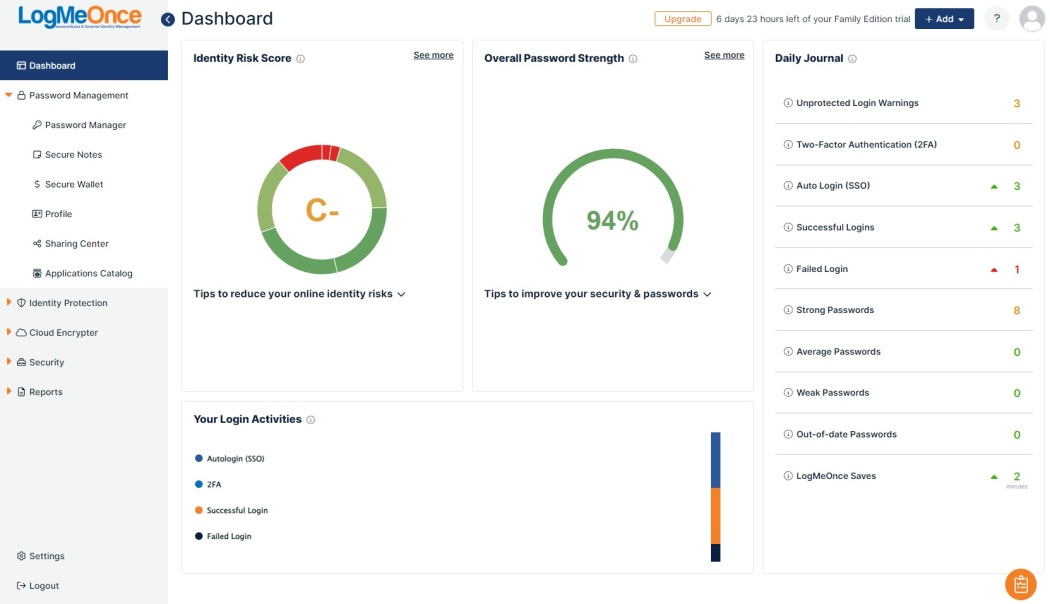
Password managers also sync across phones, tablets, and desktops, no constant retyping required. Features like breach alerts, password health checks, and secure sharing give you better control over your identities. Backups become simpler, protecting you when devices are lost or replaced.
Browser storage, meanwhile, stays brittle. Its encryption often relies only on the local device. Malicious extensions, hacks, or accessing an unlocked machine can reveal all saved passwords. Browsers rarely warn you right away or suggest fixes. You get convenience—but with big risks. Dedicated tools focus on security from the ground up, with audits and multiple barriers.
Making these changes takes effort but rewards you with much stronger online safety (in plain terms). These advanced methods build a tough shell around your digital life, covering gaps that browser storage keeps exposing in 2026 reports.
In sum, mixing encrypted password managers, hardware security keys, and biometrics offers protection browsers can’t match. Using them brings peace of mind and cuts the chances of stolen accounts or identity theft in today’s hostile cyber world.
Steps to Migrate Passwords Safely from Browser
Most security-conscious users switch to dedicated password managers instead. Both offer distinct strengths that deserve a look. Storing passwords in your browser invites risk. These tools deliver better protection and superior usability compared to browsers. In 2026, other solutions and competing platforms emerge as leaders.
Encryption Standards and Security Protocols
Comparable services locks data with AES-256 encryption combined with PBKDF2 SHA-256 hashing. This makes brute-force attacks extremely difficult. Passwords get encrypted locally before syncing, so competing platforms never sees them in plain text. Rival tools also uses AES-256 but swaps PBKDF2 for Argon2id, which resists GPU password cracking more effectively. Both operate on zero-knowledge architecture. Put simply, users hold all decryption keys—no middlemen can peek in.
Cross-Platform Support
Rival tools runs on Windows, macOS, Linux, iOS, and Android. It offers browser extensions for Chrome, Firefox, Edge, and Safari. You get a web vault accessible from any device—essential if you switch between workstations often. Alternative options supports the same platforms but adds one striking difference: it’s open-source. This transparency lets tech-savvy users audit or customize the software, boosting trust in ways alternative options can’t match.
Ease of Use and User Interface
Other solutions features a slick, intuitive interface. Passwords, notes, and forms are neatly arranged. Autofill behaves cleverly, bypassing unsafe scripts while populating forms accurately. It audits your passwords and flags weak or reused ones right away. Other solutions’s interface looks simpler and less polished. That appeals to users who want flexibility over frills. The fully open-source design invites community vetting but demands a steeper learning curve for newcomers.
Autofill Security Features
Autofill is why many hold onto browser-stored passwords. Both managers smartly reinforce this feature. Comparable services carefully matches domains to prevent autofill on phishing or fake sites. Comparable services recently tightened site-matching rules after audits revealed autofill leaks. These updates lower the odds of credentials leaking on malicious pages. Native browser autofill lacks these safety checks, making dedicated managers the safer bet.
Pricing Structures
Competing platforms’s free tier stores unlimited passwords but only on one device type. Syncing across devices needs a Premium upgrade. That costs $36 annually, adding multilayer multifactor options, dark web monitoring, plus 1GB of encrypted file storage. Competing platforms’s free tier syncs across all devices—a rarity in 2026. Its Premium plan is just $10 per year. That open ups advanced two-factor authentication, encrypted storage, and priority support. Both offer team plans priced between $3 to $5 per user each month. Rival tools’s open-source approach often wins over organizations craving transparency. Money matters.
Potential Drawbacks
Late 2025 brought a ransomware-style breach to rival tools, disclosed openly and handled swiftly. No passwords were reported stolen, yet some user trust faltered. Alternative options stays transparent but relies heavily on community audits rather than formal corporate guarantees. Tweaking other solutions for peak security takes more manual effort, which casual users may find frustrating.
Additional Features Worth Mentioning
Both managers offer secure sharing, password generators, and emergency access. Alternative options syncs with Microsoft Authenticator for hardware token support. Comparable services includes a command-line client, favored by developers. Both push biometrics to open up devices, moving past sole reliance on master passwords to strengthen security further.
Choosing between them comes down to balancing ease, transparency, and price. Migrating will take time to adjust workflows, but the security payoff justifies that effort. Other solutions delivers straightforward design backed by major commercial muscle. Competing platforms offers deep customizability and open-source trust. Neither shortcuts encryption or core defenses. Both make solid alternatives to browser password storage.
Essential Insights on Password Safety and Management
Steps to Safely Migrate Passwords from Browsers to Managers
Moving your passwords out of a browser demands caution. Start by exporting them into a CSV or similar file. That export file? Guard it like a secret—don’t leave it exposed online or on an unlocked drive. Next, import the file into a trusted app such as rival tools or rival tools. After that, erase the export file completely and wipe saved passwords from your browser. This closes off weak points that often go unnoticed.
How Password Managers Secure Your Credentials
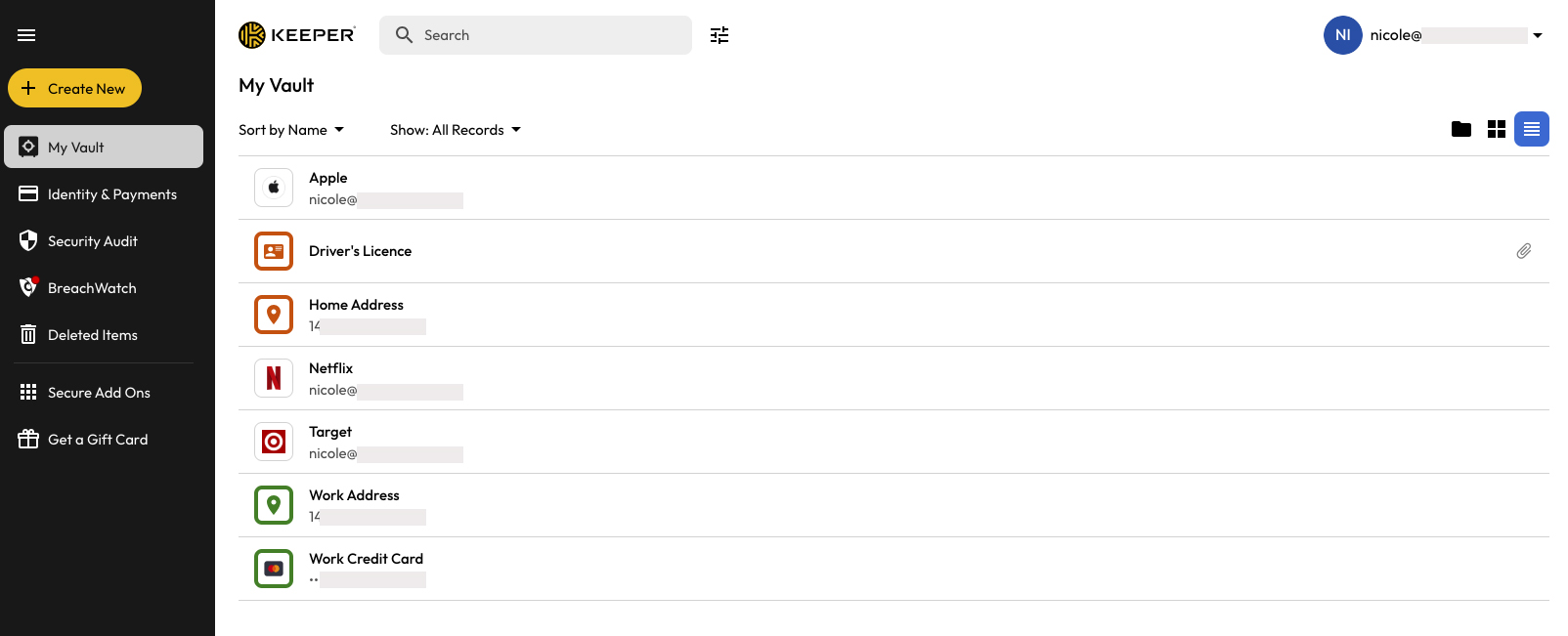
Browsers keep passwords in a relatively flimsy way. They lack the airtight encryption that password managers offer. Managers use strong ciphers like AES-256 to encrypt your data. Your logins sit in a vault locked by a master password or combined with multi-factor authentication. Many of these services implement zero-knowledge protocols, meaning the company itself can’t read your passwords. That slashes your exposure to breaches dramatically.
Reasons to Avoid Browser Password Storage
Browsers focus on convenience, not security. Their encryption often falls short of industry standards. Autofill opens doors for malware and phishing attacks. If someone steals your device or hacks your browser sync, they can easily swipe your stored data. Password managers close these gaps. They are engineered specifically to defend against those precise vulnerabilities.
Characteristics of Secure Password Managers
Good password managers sync your encrypted data securely across devices. They generate truly random passwords, cutting down on reused or weak credentials. These apps scan your vault continually, flagging reused or breached passwords immediately. The best come with open-source code or independent audits, adding real layers of accountability behind the scenes.
Ongoing Security Threats for Browser-Stored Passwords
Major browsers remain surprisingly vulnerable, according to recent reports. Malware running locally or malicious scripts can siphon off stored passwords without raising flags. Certain attacks bypass browser warnings altogether or exploit sync mechanisms to leak your secrets. These security flaws persist despite the escalating threat market in 2026. Users miss this risk.
Advantages of Dedicated Password Managers Beyond Storage
Password managers aren’t just vaults for your credentials. Many autofill your two-factor authentication codes and hold encrypted secure notes. Some even support managing digital wallets. Their deep API hooks enable automatic breach alerts and password health monitoring. Browsers simply fail to offer this kind of proactive, layered defense.
Basic Practices to Bolster Password Security Now
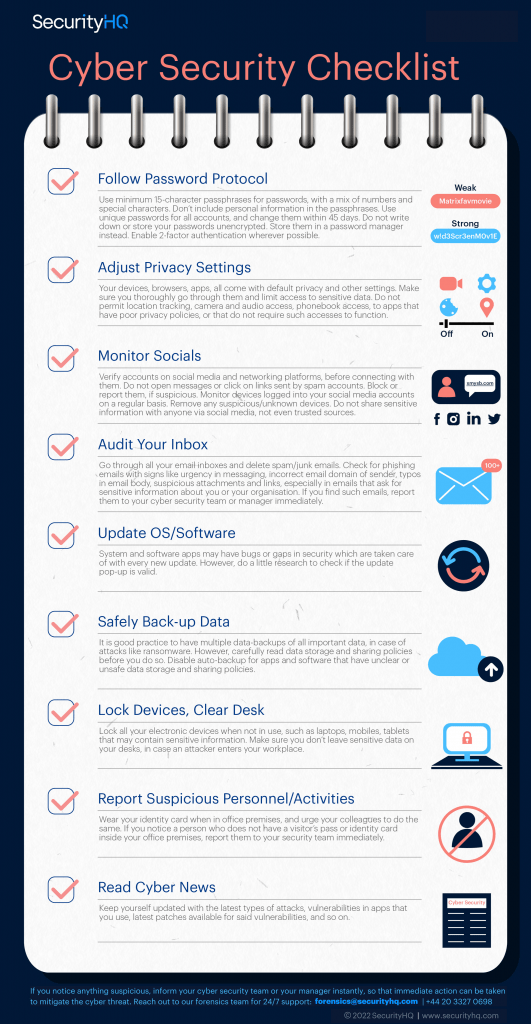
If you must keep passwords in browsers briefly, take these steps immediately. Enable two-factor authentication wherever possible. Lock your device with a strong, unique password. Never save your bank or critical site credentials inside the browser. Also, clear your saved password cache often. These measures help reduce risk, though they don’t fully replace dedicated password management.
Why Master Password Management Matters
Your master password is the lynchpin of your entire digital life. If it’s compromised, all your accounts are at risk. Password managers combine this master key with hashing and salting tactics, rendering brute-force attacks essentially useless. Choosing and protecting a unique, strong master password creates a strong barrier against unauthorized access.
Compatibility and Usability of Modern Password Managers
Leading password managers run on Windows, macOS, Linux, iOS, and Android platforms. Chrome, Firefox, and Edge extensions add autofill and easy password capture right within your browser. Some apps also support biometrics or hardware keys, simplifying quick and secure logins. The user experience balances convenience with formidable security.
Trusting Established Authorities for Password Guidance
Authorities like the National Institute of Standards and Technology (NIST) are blunt: browsers aren’t suitable for storing passwords. NIST strongly recommends using password managers instead. Their stance is grounded in extensive research and broad expert consensus, not just isolated opinions. It’s a directive backed by data you can’t ignore.
Common Obstacles When Switching to Password Managers
Many worry that migrating all their passwords will be complicated or technical. The interfaces can look daunting at first. Yet, most providers supply clear, step-by-step guides and automated import tools. That initial effort pays dividends, especially if you juggle dozens or even hundreds of accounts across multiple services.
Maintaining Password Hygiene Over Time
Monitor your stored passwords regularly. Replace any flagged as weak or reused by your manager’s security audit tools. Fight password fatigue by generating fresh, strong credentials using built-in password generators instead of recycling old ones. This steady upkeep reduces your attack surface majorly and aligns perfectly with ongoing cybersecurity proven methods.