How To Detect Hidden Keyloggers On A Windows Laptop Without Antivirus
Understanding The Hidden Threats Of Keyloggers On Windows Laptops
They record every keystroke—passwords, credit card numbers, private messages—captured without you noticing. Keyloggers hiding on Windows laptops are a silent threat. Masquerading as legitimate system processes, these programs evade antivirus detection and operate quietly in the background.
Some keyloggers are custom-built or brand new, making them invisible to signature-based scanners. Antivirus tools alone won’t catch them all. Running antivirus constantly can also drag down your system’s performance. Many users grow complacent, trusting their safety just because a scanner runs in the background.
To find these threats yourself, you need to use Windows’ built-in features and scrutinize network traffic closely.
This guide shows how to spot keyloggers without relying on antivirus software. You’ll understand how these programs operate and where to spot clues inside Windows. Using utilities like Task Manager and Sysinternals Process Explorer, you can investigate suspicious processes. Detecting if your laptop is covertly transmitting unusual data to unknown internet destinations is what you’ll learn here.
Unlike most articles that jump straight to antivirus solutions, this guide gives you hands-on control. It helps you to dig deeper and reclaim your laptop’s security. These steps are designed for Windows tools updated through 2026, so you have current methods to catch sneaky keyloggers without installing extra software that slows you down.
What is a Keylogger?
Identify common signs that a hidden keylogger might be running on your machine.
Use Windows’ built-in utilities to examine active processes and background services.
Monitor outgoing network traffic for unauthorized data transfers.
Understand the limits of manual checks versus antivirus programs.
No single tool catches everything. But combining these methods increases your chances to detect keyloggers early—critical to stopping data theft and safeguarding your digital life (in most cases). We’ll begin by hunting for subtle symptoms your laptop might show if it’s been infected.
The main points
Manual detection methods for hidden keyloggers without antivirus
Using Windows built-in tools to identify suspicious processes
Signs and symptoms of keylogger activity on a laptop
How to analyze network traffic for keylogger data leaks
✅
Fact-Checked
Editorial Review
🧠
Expert Analysis
Sourced & Cited
🗓️
Updated 2026
Current & Accurate
What Keyloggers Are and How They Work on Windows Laptops
Keyloggers sneak around your computer, quietly logging every key you press. Their secretive ways make them a constant privacy risk. They steal passwords, emails, credit card numbers, and private chats without you knowing. On Windows laptops, keyloggers appear either as hidden software or tiny devices inserted between the keyboard and the machine.
Software keyloggers hide inside the operating system. They latch onto keyboard input APIs or run unseen background tasks that grab your keystrokes. The stolen info either sits hidden on your laptop or slips over the network to hackers. Since they don’t open windows or flash alerts, spotting them during normal use is tough.
Hardware keyloggers take a different track: they’re tiny physical gadgets plugged between the keyboard and laptop or soldered inside the keyboard itself. They catch keystrokes at the hardware level, dodging all software shields. Most users wouldn’t notice them without carefully checking cables or the laptop case. These devices don’t rely on software bugs or installations, making them tougher to uproot and creepier (broadly speaking). Silent threat.
They’re designed to skip past normal warnings or system alarms. Finding hidden keyloggers on a Windows laptop without antivirus is a brutal challenge. Some rename themselves with boring process names or hide inside trusted system tasks. Windows tools usually miss them because they use little memory and keep network chatter low-key.
Here’s why tracking them without antivirus is hard:
Signs Your Windows Laptop May Have a Hidden Keylogger
Keyloggers cloak their processes and files like rootkits, hiding from basic system tools.
They run with high privileges, slipping past user controls and security rules.
Logging keystrokes happens so low-level that no visible Windows interface signs show up.
Their network traffic looks normal or is scrambled, making it tough to spot.
Software keyloggers stash themselves in obscure folders or tweak system registries to auto-start secretly.
Spotting the odd behavior needs sharp eyes and solid knowledge of how Windows ticks. All this sneaking around means you have to dig deep with Windows tools—checking running processes, startup programs, and network links—to catch faint clues.
Without antivirus software, you remain vulnerable unless you actively track running processes and network connections, even though antivirus automatically blocks many threats. If a Windows laptop is infected by a lurky keylogger, the user risks stolen login credentials, harassment, and financial scams. Using tools like Task Manager or Sysinternals Process Explorer can shine a light on these hidden hackers.
Because some keyloggers imitate system service names or replace DLL files in trusted programs, thorough verification and deep knowledge become necessary. But telling apart normal system tasks from sneaky keyloggers gets tricky. The complexity behind these threats is why most people rely on antivirus, but those who master manual detection methods gain a valuable advantage. Detecting keyloggers casually is near impossible; you need a detective’s patience and Windows’ diagnostic features.
Experts say mixing several tactics works best without antivirus: analyze running processes, drivers, network points, and even boot sequences. This layered check can uncover keyloggers lurking beyond quick scans and firewalls (broadly speaking). This method fits users who want tight control or IT pros managing risks with no extra antivirus installed. Later sections will walk you through Windows utilities and step-by-step checks to root out these hidden threats in 2026.
Hackers keep improving their stealth each year, so a determined, in-depth manual hunt is key to protecting sensitive digital life from spying and theft. The many quiet tricks keyloggers use on Windows laptops show why spotting them without antivirus takes work—but it’s doable.
Using Windows Built-in Tools to Detect Keyloggers
Recent studies reveal that even top security suites sometimes miss deeply buried keyloggers. This ongoing cat-and-mouse game means users must learn manual tools to stay safe. Knowing these defenses sharpens your guard against hidden keyloggers on Windows laptops.
Preliminary Manual Checks to Spot Hidden Keyloggers
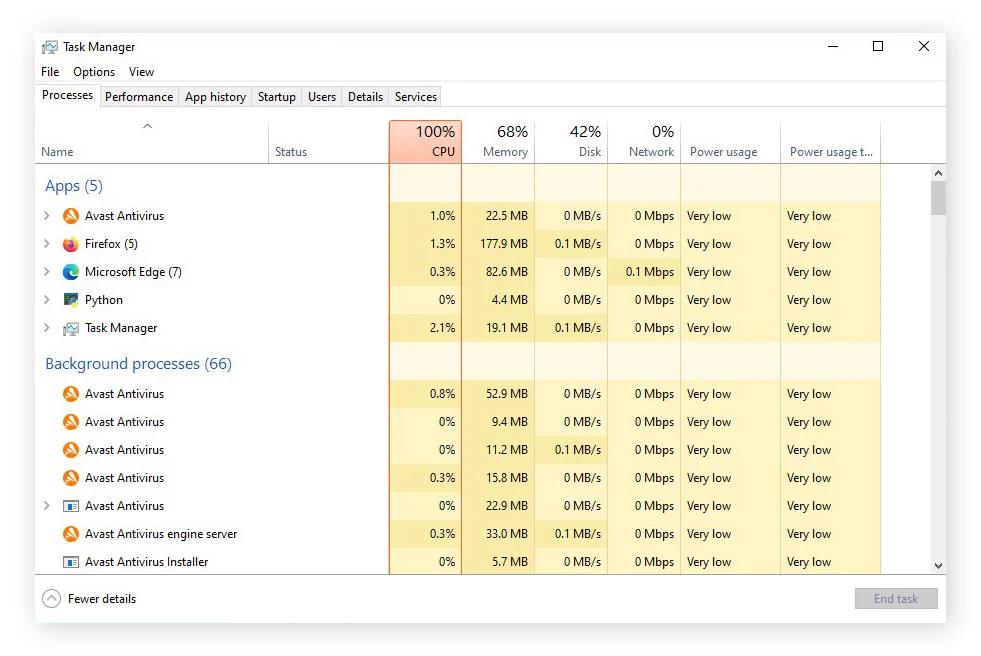
It shows all active processes. Scan the list by CPU or memory use. Weird or resource-hungry tasks could be keyloggers hiding in plain sight.
This tool goes beyond Task Manager. It reveals where processes run from and their digital certificates. If a process lacks a verified publisher, that’s a red flag.
Many keyloggers sneak into your system by launching at startup. The Startup tab lets you disable unknown or suspicious apps before they wake.
Though it’s older, msconfig uncovers startup items that Task Manager misses. It shows hidden services and scheduled tasks, perfect for exposing deeply buried keyloggers.
Some keyloggers avoid constant running by triggering on schedules. Browse the Task Scheduler Library for strange or unrelated tasks and disable them.
The command netstat -ano lists open TCP/IP links and their process IDs. Spotting unfamiliar external IPs or odd outgoing connections might mean data is leaking to a keylogger.
Link the netstat process IDs with running apps in Task Manager or Process Explorer. Unsigned or suspicious processes showing network chatter demand suspicion.
Look for sudden bursts of logon events, odd script runs, or errors from unknown software. These hints often point toward stealthy keyloggers at work.
The hosts file can redirect domains to hide command servers. Open %windir%\System32\drivers\etc\hosts in a text editor and hunt for strange redirects.
Keyloggers often drop kernel drivers or twist registry keys to avoid detection. Cmdlets like Get-ItemProperty can reveal suspicious startup folder entries or Run keys.
Some keyloggers masquerade as browser extensions capturing keystrokes. Go through your extensions and remove any unverified or odd add-ons.
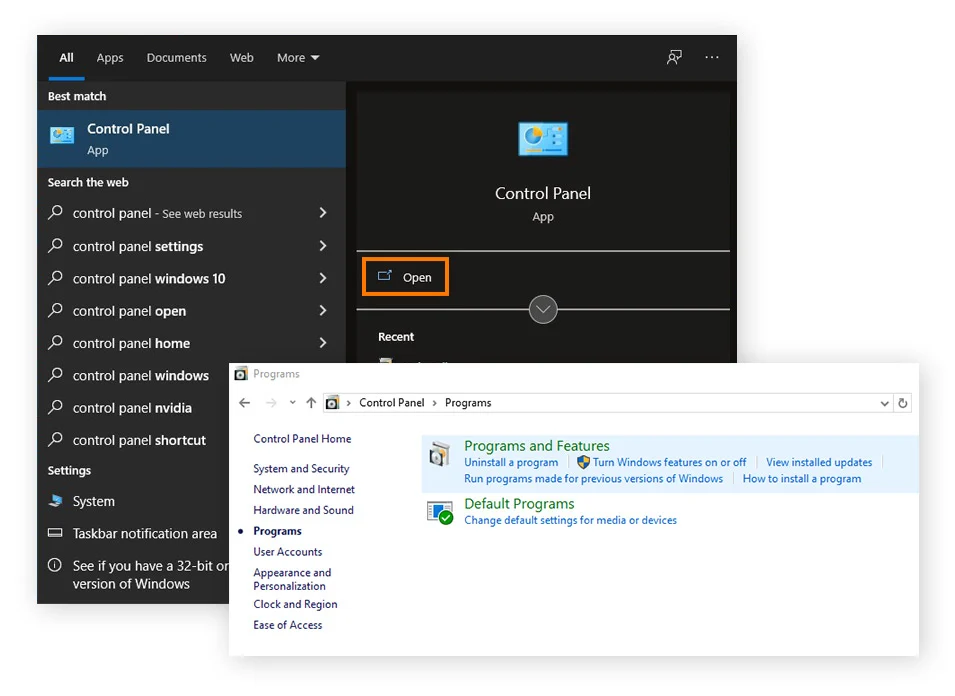
Hidden admin accounts let keyloggers run unseen. The command net user and the Control Panel’s User Accounts panel help spot unauthorized users.
Search system and user folders for .exe or .dll files created or changed recently. Weird names or unknown origins deserve a closer look.
Hardware keyloggers may leave traces in USB logs. Device Manager or third-party apps reveal connected peripherals and their past presence.
Track disk, network, and CPU usage by process. Strange spikes in activity can reveal a keylogger running silently.
These checks mix built-in Windows tools with deeper digging into processes and networks. You get a sharp, hands-on way to spot hidden keyloggers without needing antivirus software. Running them often can catch threats before they swipe passwords or smash your setup. Malware grows stealthier, but these steps pierce its disguise (in most cases).
But this method cuts through antivirus blind spots better than anything automatic. Matching unknown network traffic with unsigned processes is one of the most reliable ways to spot trouble and decide when to dig further. Microsoft’s TechNet library covers these tools thoroughly. For instance, the Sysinternals Process Explorer official page lays out this advanced monitoring in detail.
Using Windows Built-In Tools To Spot Hidden Keyloggers
Open Task Manager to Monitor Active Processes
Task Manager shows all programs and background tasks running right now, including ones sneaking around. You can right-click the taskbar and pick “Task Manager” or just hit Ctrl+Shift+Esc. This gives a quick look at what’s active—maybe a keylogger hiding in plain sight.
Sort Processes by CPU and Memory Usage
Sort the list by CPU or memory to find any processes gobbling up resources oddly. Some keyloggers run quietly but still flare up here or there, using more CPU or RAM than they should compared to normal system tasks.
Review Process Names for Suspicious Entries
Scan process names you don’t recognize or that look off. Keyloggers often pick dull or confusing names to blend in. Googling strange process titles can help spot imposters.
Open Resource Monitor to Examine Detailed Activity
Resource Monitor digs deeper into CPU, disk, network, and memory action. Launch it from Task Manager’s Performance tab or type “resmon” in the Run box. It’s good at catching processes causing unexpected disk writes or strange network chatter, which keyloggers prefer.
Inspect Network Connections for Unusual Communication
Check Resource Monitor’s Network tab for active TCP/IP links. Keyloggers often send keystrokes out to remote servers, so watch for odd outbound connections to IPs or domains you don’t know.
Use Command Prompt to List Running Services
Run sc query in Command Prompt to list every service on your PC. Since keyloggers may hide as services that start automatically, look for entries that seem new or unfamiliar compared to standard Windows components.
Execute PowerShell Commands to Identify Hidden Modules
PowerShell can peek at loaded modules and scheduled tasks where keyloggers might lurk. Try Get-Process | Where-Object {$_.Modules.Count -gt 0} to see active processes with modules. Scheduled tasks sometimes keep keylogger code running after reboot.
Check Autostart Locations Using PowerShell
Keyloggers like to sneak into startup folders and registry keys to launch quietly. Use PowerShell’s Get-CimInstance -ClassName Win32_StartupCommand to list programs set to run at login or system start.
Analyze File Signatures and Paths
Many legit system processes live in C:\Windows\System32. But if a process runs from a temp folder or inside user documents, that’s suspicious. Right-click a process in Task Manager and choose “Open file location” to check where it lives. Watch carefully here.
Use Sysinternals Process Explorer for Advanced Inspection
Grab Microsoft’s free Process Explorer—it reveals process trees and loaded DLLs. This helps find weird injections or hidden threads typical of keyloggers using rootkit tricks.
Look for Keyboard Hooks Using Sysinternals Utilities
Keyloggers often set keyboard hooks to capture your typing. Process Explorer can spot these hooks intercepting input without needing antivirus help.
Review Scheduled Tasks with Task Scheduler
Open Task Scheduler via Control Panel or run taskschd.msc. Hunt for strange or new tasks triggering executables with weird names or folders; stealthy keyloggers love using this to survive restarts.
Monitor User Accounts and Group Policies
Type gpresult /h report.html in Command Prompt to make a Group Policy report. Some tricky keyloggers tweak policies to disable security or cover their tracks.
Search for Unexpected Listening Ports
Run netstat -ano in Command Prompt to show network links and process IDs. Unrecognized open ports might mean a keylogger is sending data out live.
Combining checks on processes, networks, and startup spots can expose sneaky logging without touching antivirus software. Each step arms you with hands-on ways to spot hidden keyloggers using only Windows’ own tools. This suits offline or cautious scans, where antivirus footprints might be erased or blocked. Using Microsoft’s official Sysinternals tools takes your forensic work even deeper.
For richer details on how these tools work, check Microsoft’s Sysinternals docs with usage tips and commands, especially useful for manual hunting: Sysinternals Suite Documentation.
Performing a Physical Inspection for Hardware Keyloggers
Examine the Keyboard Connection Ports
Begin at the laptop’s keyboard connection. Small hardware keyloggers often hide inline between the keyboard cable and port. You might notice an unfamiliar adapter or an extra connector that wasn’t there before. A random chunk of plastic or metal here usually spells trouble. Check carefully.
Check for Unusual USB or PS/2 Adapters
Scan your USB or PS/2 ports carefully if they connect your keyboard. External keyloggers can sneak in as bulky boxes or odd converters that intercept keystrokes first. If a plug looks off or heavier than usual, that’s your cue to investigate further.
Inspect Around the Keyboard Frame and Under the Keys
Don’t stop at the connectors. These devices can nestle beneath keys or inside the frame. Feel for any looseness along the keyboard edges, hidden wires, or attachments under the keycaps. Sometimes, a tiny recorder slips between the keyboard and laptop body, nearly invisible without close scrutiny.
Examine All Peripherals for Added Components
Every connected device counts: external numpads, gaming controllers, even macro pads. Keyloggers can attach here as well. Each peripheral should be pristine. Look out for added chips, circuit boards, or small boxes stuck onto cables or casings.
Look for Hidden or Modified Internal Connectors
If you’re up for it, open the laptop and inspect the ribbon cables. Some internal keyloggers take the form of slim circuit boards or chips wedged between the keyboard and motherboard. It demands sharp eyes and gentle hands to spot these stealthy intruders slipping in without permission.
Monitor LED Indicator Behavior
Some physical keyloggers flash tiny status lights when active. Watch the keyboard closely while you type for any unexpected blinking or glowing LEDs—especially flashes that don’t match the keyboard’s normal lighting patterns.
Review Charging Ports and Other Uncommon Interfaces
Don’t overlook charging ports, dock connectors, or external hubs. Keyloggers sometimes masquerade as charging adapters or pop up there without warning. Inspect these areas for new or out-of-place gadgets, particularly anything that looks out of factory specs.
These steps cover the usual spots where hardware keyloggers hide. Combining this hands-on scrutiny with dedicated software detection tools can dramatically increase your chances of catching them. For complete advice, check the National Institute of Standards and Technology’s in-depth guide. NIST’s guide on hardware security threats maps this territory with precision and detail.
Proven methods to Prevent Keylogger Infection on Windows Laptops
They often hide malicious downloads. Avoid unfamiliar websites and never click on untrusted links. Update Windows and all your software frequently; patches fix critical holes hackers exploit to sneak in keyloggers. Use standard user accounts daily—administrative rights boost the chance that keyloggers get installed (as a rule).
Macros and scripts within emails or documents? Check your file and folder permissions: make sure unauthorized apps can’t drop or run executables where sensitive data lives. Disable or tightly control them. These can carry hidden code that quietly plants keyloggers. Don’t grab software or files from peer-to-peer networks, random emails, or unofficial sites. They’re a magnet for spyware.
Enable it. An unusual spike in CPU or disk usage can hint something’s amiss. Windows’ User Account Control (UAC) isn’t just a nuisance; it watches for system changes needing high-level permissions. Turn on Windows Firewall with strict outbound rules to watch outgoing connections—keyloggers phone home and you want to block that. Use Task Manager or Sysinternals Process Explorer often. Look for strange programs humming silently in the background.
Web-based keyloggers sometimes piggyback on these to survive past the first infection. Avoid it or limit usage, since attackers can hijack sessions or inject malware unnoticed. Regularly clear your browser cache, cookies, and history. Teach everyone who uses the laptop about phishing and social tricks—they’re the top cause of accidental installs posing as legit requests. Public Wi-Fi is a trap.
If malware hits, you won’t lose everything. Back up your data offline. Use software restriction policies through Group Policy or local settings to block unsigned or unknown apps from running. Turn off unneeded hardware like Bluetooth or external ports to cut down infection routes. Occasionally, run PowerShell commands to list all installed programs.
Analyzing Network Traffic for Suspicious Activity
They’re an open door for attackers seeking to plant spying tools remotely. Never reuse simple passwords everywhere. Disable autorun for USBs and external drives; they can sneak in keylogger software unnoticed (in plain terms). Keep system event logs active—review them often for suspicious logins, unexpected program launches, or strange permission changes.
You can’t rely on antivirus alone—they often miss stealthy or custom-crafted keyloggers. Prevention depends on careful habits, managing your system carefully, and staying alert to manipulation attempts. Power users should combine native Windows monitoring tools with network traffic reviews to catch outgoing data that signals keylogger activity. Layer these defenses and you cut way down the attack surface, securing your sensitive keystrokes on Windows laptops.
For detailed standards on protecting system integrity and mitigating threats, check the National Institute of Standards and Technology’s official guidelines.
Common Concerns and Troubleshooting for Hidden Keyloggers on Windows Laptops
Ensuring Legitimate Processes Are Not Mistaken for Keyloggers
Windows runs dozens of background processes vital for system stability. Seeing a process you don’t recognize isn’t proof of a keylogger. Before reacting, compare suspicious processes with trusted online databases or Microsoft’s official docs. Mistaking normal services for malware can break important system features. Verify first.
Using Task Manager Effectively to Spot Anomalies
Task Manager shows all active processes. Many keyloggers hide behind generic or system-like names. Don’t trust the name alone. Watch for CPU spikes or memory use that don’t fit your current tasks. Also, check the file location: legitimate Windows files usually live in the System32 folder. Odd directories can signal trouble.
Employing Sysinternals Process Explorer for Deep Inspection
Process Explorer digs deeper than Task Manager. It reveals process hierarchies, loaded DLLs, and digital signatures. Sometimes, keyloggers run unsigned or hook into input APIs to capture keystrokes unnoticed. Look for strange parent-child process links or weird open handles—these quirks often mark lurking malware.
Monitoring Network Traffic for Unusual Activity
Hidden keyloggers often sneak off tiny bursts of data to remote servers. Use Resource Monitor or specialized network analyzers to spot unexpected outbound connections. A cluster of brief, repeated packets heading to unknown IPs, especially when you’re not active, can mean your keys are being shipped out.
Signs of System Performance Degradation Linked to Keyloggers
A laptop with a keylogger may slow down, crash, or freeze suddenly without warning. These extra background processes hog resources. But slow performance alone isn’t proof—you have to check running processes and monitor network activity to confirm.
Understanding Why Antivirus-Free Detection May Miss Some Threats
Antivirus programs depend on signature databases, which get outdated. New keyloggers can slip past unseen. Windows’ built-in tools show detail but require skills and patience. You need to analyze system logs and behaviors thoroughly—manual checks often catch stealthy threats antivirus misses.
Resetting Suspicious Processes Without Full Reboot
Spot a suspicious process but can’t delete it now? Killing it with Task Manager or Process Explorer stops data capture temporarily. Backup your important files immediately. Then plan offline scans with specialized cleaners or a full system wipe. Quelling keylogger activity fast limits harm while you prepare the next move.
Cleaning Temporary and Startup Items to Block Keylogger Persistence
Keyloggers like to auto-start via registry keys or scheduled tasks. Review startup entries regularly using MSConfig or Autoruns to find hidden launch points. Delete temp files often—keyloggers stash logs or scripts there to survive reboots. Their survival depends on these sneaky footholds.
Using Event Viewer to Track Unexpected Logins or System Changes
Windows Event Viewer logs system, security, and application events. It can reveal odd login attempts or unauthorized file changes. Seeing repeated suspicious entries? Check what processes ran then. This adds a key investigation layer when antivirus tools can’t help.
Handling False Positives in Manual Inspections
Some apps legitimately monitor keyboard inputs—like enhancement tools—and might look like keyloggers. Check vendor digital signatures and compare behaviors closely. This avoids deleting safe software by mistake. Not every unfamiliar process means trouble.
Importance of Frequent Manual Checks and System Backups
Regularly scan processes, startup items, and network traffic. It sharpens your eye for spotting keyloggers early. Keeping recent backups means you can recover if an infection sneaks past. Manual vigilance is key, especially if antivirus is disabled for policy or performance reasons.
Using Windows Security Policies to Limit Unauthorized Installations
Set User Account Control (UAC) and Windows Defender policies tight, even if no antivirus runs. These rules restrict install and execution rights to trusted admins only. Keyloggers usually need high privileges to work well, so this narrows their attack surface without extra tools.
Recognizing Limitations of Manual Detection Measures
Manual checks catch many keyloggers, but advanced ones use rootkits or kernel hooks hidden deep in the system. Detecting those might require forensic tools or special hardware analyzers. Still, mixing multiple Windows utilities gives a strong chance to find most common threats.
Avoiding Reliance on Outdated Detection Techniques
Old ways like hunting files by hand or killing processes blindly fail against modern stealth keyloggers. Instead, combine real-time process watching, network traffic analysis, and event log review for better defense. This layered tactic suits practical, hands-on investigations.
Windows’ built-in diagnostic tools need skill but offer the only thorough view when third-party software isn’t an option. These tips help users detect hidden keyloggers with no antivirus available. Careful, layered checks slash blind spots and build solid tech awareness. For deeper technical details on process and network monitoring, visit Microsoft’s Sysinternals site and US-CERT cybersecurity guidance.