
Why Detecting Hidden Spyware on Android Phones Matters

It sneaks in quietly, grabbing sensitive info without a user’s knowledge. Spyware lurking on Android phones is a real risk to your privacy and security (for the most part). Phones hold a lot—contacts, messages, bank login details, location trails. When spyware is present, all that stuff can slip away to hackers. Identity theft, drained accounts, or worse.
It burrows deep inside the system, dodging casual detection and many antivirus tools. Spyware doesn’t behave like regular malware. This malware enables attackers to listen to calls, monitor your location, capture every keystroke, and activate cameras or microphones stealthily. Usually, spyware sneaks in by hitching a ride with legit apps or exploiting weak spots in Android’s defenses.
Ways spyware infects an Android include:
- Installing apps from sketchy, unofficial stores packed with malicious code.
- Clicking on fake links in emails, texts, or messaging apps that trigger silent spyware downloads.
- Taking advantage of outdated Android versions or apps with patch gaps.
- An attacker having physical access and planting spying software directly.
- Social tricks that prompt you to grant too many permissions to apps pretending to be harmless.
Google Play’s checks catch some threats, yet spyware can masquerade as useful tools to stay unnoticed longer. Android’s open app market drives innovation but also lets bad apps slip past filters. Signs that spyware might be active pop up as weird battery drain, odd spikes in data use, or slowdowns that don’t add up.
To detect and remove hidden spyware, you have to understand its quiet ways and subtle traces. Spotting it isn’t easy, but knowing what’s normal helps you regain control of your device’s security. Staying cautious and informed is key—you need to look closely at app permissions and keep your software patched. Android’s security guides emphasize these basics. For trusted advice on privacy and protection, check out resources like the United States Cybersecurity and Infrastructure Security Agency.
What is Spyware and How It Works
Step 1: Identifying Symptoms of Spyware on Your Android Phone
- Unusual Battery Drain
Spyware runs nonstop in the background, burning through your phone’s battery. Suddenly needing to charge more often, or seeing your battery drop fast with no heavier use? That’s a red flag. Some nasty app is quietly sucking power for its own purposes.
- Increased Data Usage
Spyware sends stolen info back to hackers, pushing up your data bills. Notice mysterious hikes in mobile data that don’t match what you normally do? That secret chatter means spyware is tracking you without permission.
- Slow Performance and Frequent Freezes
When spyware hogs CPU and RAM, your device drags. Apps take ages to open; your screen might freeze or crash. These symptoms often pop up with malware strains that drain resources for spying.
- Unexpected Pop-Up Ads or Apps
Out-of-place ads, or strange new apps appearing out of nowhere—that’s classic spyware or adware behavior. These sneaky tools distract you or slip in more harmful software to grab your data.
- Unusual Background Noises During Calls
A low clicking or static during a call can mean someone’s eavesdropping. Spyware made to record phone calls often causes faint echoes or noise, betraying hidden recording.
- Apps Turning On Automatically
Apps activating by themselves—opening cameras, mics without your say-so—usually points to spyware fiddling with permissions. It’s digital spying at its worst, quietly capturing whatever it can.
- Strange Text Messages or Emails Sent From Your Phone
If your phone ships out weird texts you didn’t write, especially to premium numbers, it probably has spyware. This malware tries to spread or rack up charges by hijacking messaging.
- Overheating or Excessive Heat Generation
Nonstop malware work makes your processor fry, heating your phone beyond normal levels. If it gets hot out of nowhere—even when idle—spyware may be running wild behind the scenes. Heat spikes happen fast.
Catching these clues early lets you act fast (by and large). Spyware’s tricks are subtle, but knowing what to watch for means you can strike back in time. Spotting spyware signs is the first step toward wiping hidden threats and locking down your phone. For those serious about security, these skills are key—helping you stop data leaks before they grow into disasters.
Real-world tests back this up—spyware infections often match these signs across many Android models. Cybersecurity reports from 2026 link sudden battery drops, data surges, odd noises, and strange app activity directly to malware attacks. The official mobile security guidelines advise regular checks for these symptoms to keep your data safe and avoid secret spying.
Step 2: Using Built-In Android Tools to Detect Spyware
- Access the App Permissions Menu
Apps that spy often want access to your camera, microphone, location, or contacts. Head into Settings > Privacy > Permission Manager and see which apps have these permissions. Pull back anything you never approved. Spyware thrives in the shadows of granted permissions.
- Check Battery Usage Patterns
Spyware burns your battery fast while running secretly. Handle to Settings > Battery > Battery Usage to spot apps that unexpectedly drain power. Unfamiliar or rarely opened apps hogging juice? That’s a red flag.
- Review Data Usage Records
Spyware secretly sends your private data out. Look at Settings > Network & Internet > Data Usage and scan for apps using big data amounts. Sudden spikes from an unknown app can mean hidden spyware transmissions.
- Inspect Running Services and Background Processes
Some spyware burrows deep into always-on background processes. First, activate Developer Options by tapping the Build Number seven times under Settings > About Phone. Then check active services. Unknown apps quietly running here? Don’t ignore them.
- Analyze Recently Installed or Updated Apps
Spyware often sneaks in via new installs or updates. Go to Settings > Apps & Notifications > See All Apps, and sort by install or update date. Any random new apps or recent updates you don’t remember installing? Investigate or uninstall.
- Use Android’s Play Protect Scan
Google Play Protect scans automatically for app threats. Open the Play Store, tap your profile icon, then choose Play Protect. This tool matches apps against Google’s malware database. It’s a solid defense against known threats.
- Examine Device Admin Apps
Spyware granted device administrator privileges has deep control—it’s often unremovable without special effort. Check Settings > Security > Device Admin Apps. Disable any you can’t identify. These permissions let spyware embed itself tightly.
- Monitor Notifications for Anomalies
Watch for strange pop-ups or odd notifications from unknown apps. A sudden flood of weird alerts or repeated messages often signals spyware tracking you through notifications.
- Check App Info for Odd Behavior
Back in Settings > Apps & Notifications > See All Apps, tap suspicious apps and scrutinize their details: storage, permissions, battery use. Apps crashing regularly or demanding too many system powers are likely trouble.
- Factory Reset as Last Resort
When spyware traces pile up but stay hidden, a factory reset wipes all apps, data, and malware. This step erases everything, so back up what matters before you proceed. It’s your final firewall.
Permission monitoring, battery and data audits, plus Google Play Protect create a layered early warning system (at least usually). These steps rely entirely on Android’s built-in tools—no root required, no dubious third-party apps. Regular device checks can halt spyware before it grabs your secrets.
For expert guidance, reference the U.S. Cybersecurity & Infrastructure Security Agency’s mobile phone security guidelines. They share detailed advice on locking down your phone tight.
Step 3: Installing and Using Reputable Anti-Spyware Apps

- Research Trusted Anti-Spyware Apps
Finding a good antivirus or anti-spyware app matters. Look for ones with strong user ratings, clear update rules, and privacy statements that experts have checked. These apps should prove real and effective before you trust them.
- Download from Official Sources Only
Never grab apps from odd third-party stores. Only use Google Play Store or developer sites you know. Fake apps dressed as security tools can sneak in worse spyware instead of fixing problems.
- Verify App Permissions Before Installation
Check what permissions the app asks for. It should only want things like storage access to scan files. If it demands permission to read messages or contacts, that’s a red flag. Those extra rights often bring privacy risks.
- Install and Launch the Security App
After installing, open the app. You’ll often need to give just a few basic permissions, turn on real-time protection, and start a background scan. This sets the app to look out for suspicious phone behavior right away.
- Run a Full System Scan
Start a thorough scan covering every app, file, and system process. It can take minutes depending on your phone’s size and the app’s depth. The app hunts for known spyware, odd actions, and sneaky background tasks.
- Review Scan Results Carefully
Once done, read what it found. Many apps rank threats by danger levels and describe the malware found. These details guide you on which issues to remove fast and which ones to keep an eye on.
- Remove Detected Spyware and Malicious Apps
Use the app’s removal tool to delete or quarantine infected files. If spyware hides deep in the system, the app might tell you to boot into safe mode or remove admin privileges manually.
- Keep the Anti-Spyware App Updated
Spyware changes fast. If your detection tools lag, bad software slips by. Update your app often through official channels. Some apps auto-update, so you don’t have to think about it.
- Enable Real-Time Protection and Scheduled Scans
Turn on live monitoring so the app spots new threats as you go. Also, set up scheduled scans to run automatically, catching spyware before it digs in or steals more info.
- Use Caution With Recommended Fixes
Some apps suggest extra fixes or system tweaks. Don’t blindly accept them. Without experience, you might erase key files or settings, breaking your phone. When unsure, check with official support first.
They work hand in hand with manual checks, adding automated eyes to guard your data without rooting your device. These steps build a solid shield against Android spyware creeping in unnoticed. Full scans plus smart app choices form the core of strong mobile security.
Spyware today hides behind clever tricks. Security tools must track new threats and keep up with Android updates. Plenty of free and paid apps fit different needs (in most cases). Pick ones that use clear privacy policies and give you control. Combo antivirus plus anti-spyware apps catch more threats without draining battery or hogging memory.
Real-time detection, regular scans on schedule, and prompt updates create a system that spots and wipes out malware consistently. Alongside smart permission checks and user vigilance, this blocks spies from stealing your chats, bank info, and photos. For deeper advice on app permissions and device security audits, explore essential website audit SaaS solutions, which include expert tips relevant to mobile users guarding their digital lives.
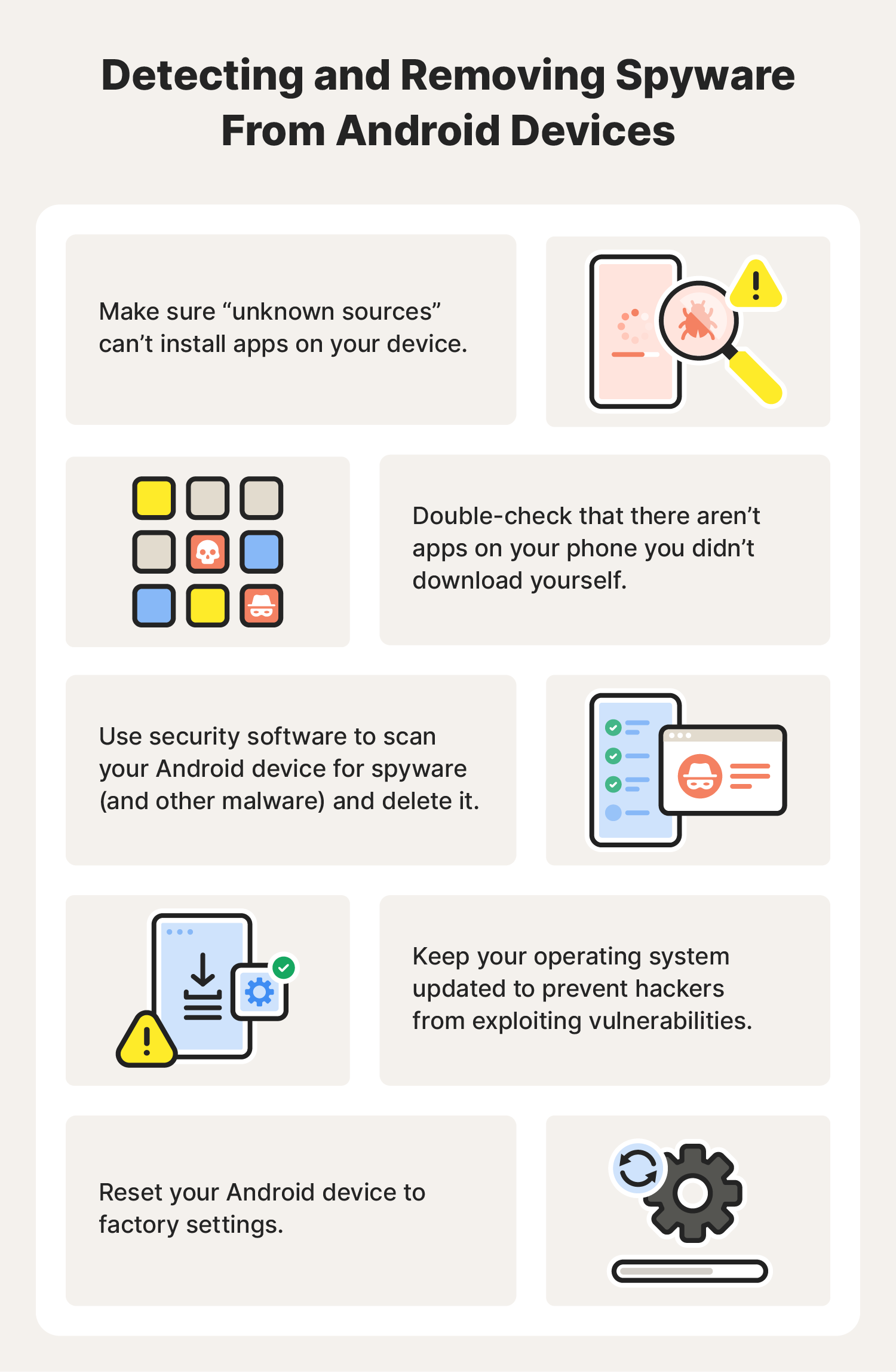
Step 4: Manual Removal of Spyware

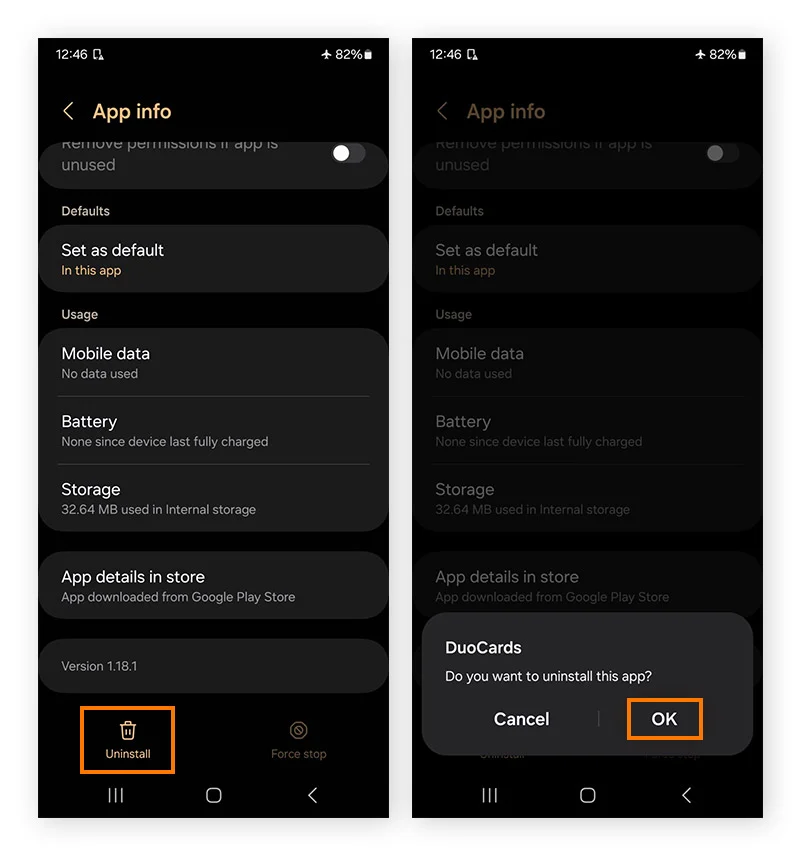
- Uninstall Unknown or Suspicious Apps
Head to Settings > Apps and scroll through the list. If you find apps you never installed or those that look fishy, delete them. Spyware often hides behind names that seem legit but aren’t.
- Clear App Cache and Data
Spyware can stash temporary files to keep going unnoticed. Go to Settings > Apps > Storage for the suspicious app, then hit Clear Cache and Clear Data. This wipes out any secret logs it’s hoarding.
- Revoke Excessive App Permissions
No spyware runs without access to key permissions like your microphone, location, or SMS. Open Settings > Privacy > Permission Manager, then yank permissions that don’t make sense for any app. This slashes spyware’s grip.
- Disable Device Administrator Rights for Unknown Apps
Some spyware gives itself device administrator rights to stay put. Check Settings > Security > Device Administrators. If any unknown apps have the checkbox, uncheck them. This lets you delete those stubborn programs.
- Restart Your Device in Safe Mode
Safe Mode blocks third-party apps from running. Hold the power button, then tap and hold Power Off until Safe Mode pops up; confirm it. Now, you can uninstall spyware apps that refuse to budge in normal mode. No distractions.
- Check for Apps with Accessibility Service Access
Spyware sometimes uses accessibility settings to spy or control your phone. Go to Settings > Accessibility > Installed Services and turn off any suspicious entries.
- Reset Network Settings
Spyware can push data out through your network connections without you knowing. Go to Settings > System > Reset Options > Reset Wi-Fi, mobile & Bluetooth. This severs any hidden data leaks.
- Review Battery Usage for Hidden Resource Hogs
Some spyware saps your battery by running nonstop. Look under Settings > Battery > Battery Usage for apps eating up power oddly. Deleting or restricting these can halt their activity.
- Manually Stop Background Apps Running Unnecessarily
Force-stop apps running without reason. Spyware often lurks in background processes that slow your device down. Find these under Settings > Apps > Running, then tap Force Stop.
- Clear Browser History and Data
Browsers can be entry points for spyware through injected code. Open your browser, go to Settings, and clear cache, cookies, and history to shut down these threats.
Doing these steps regularly — checking permissions and clearing caches — builds a strong defense against spyware. It puts you back in control without relying just on automated scans. Knowing how to spot and toss out spyware by hand is vital for keeping Android safe in 2026. The safer your device, the more privacy you get. Cybersecurity experts stress that manual controls over apps and permissions are key to beating tough spyware criminals: see the official guide for full details.
Step 5: Factory Reset and Preventing Future Spyware Infection
- Backup Your Important Data
Copy your files, contacts, and photos to a cloud service or external drive. A factory reset wipes everything on your phone. Don’t back up apps themselves—spyware can nest deep in app data and creep back in unnoticed.
- Charge Your Phone Fully or Keep it Plugged In
Factory resets take time and drain battery power substantially. Make sure your phone is charged close to 100% or keep it plugged in during the process. If your phone dies mid-reset, the software might corrupt and leave your device unusable.
- Handle to Factory Reset in Settings
Open Android’s Settings app. Then follow System > Reset options > Erase all data (factory reset). Paths can shift depending on your device model or Android version, so check your phone’s manual if you don’t see the exact steps.
- Confirm Your Identity
Android will ask for your PIN, password, or pattern before wiping. Spyware sometimes disables these locks. Re-enabling your security settings first blocks unauthorized factory resets.
- Perform the Factory Reset
Tap erase all data, then confirm. Your phone restarts and methodically deletes all personal files and installed apps. This deep clean blasts spyware hiding anywhere inside the system or apps.
- Reinstall Apps Cautiously
After the reset, don’t restore apps from shady backups or unknown sources. Only install apps from Google Play Store—it scans for malware and drops malicious apps before they get in.
- Set Up Google Play Protect
Turn on Play Protect in Google Play settings. It routinely scans your apps for suspicious behavior. This is your frontline guard against spyware disguising itself as a regular app.
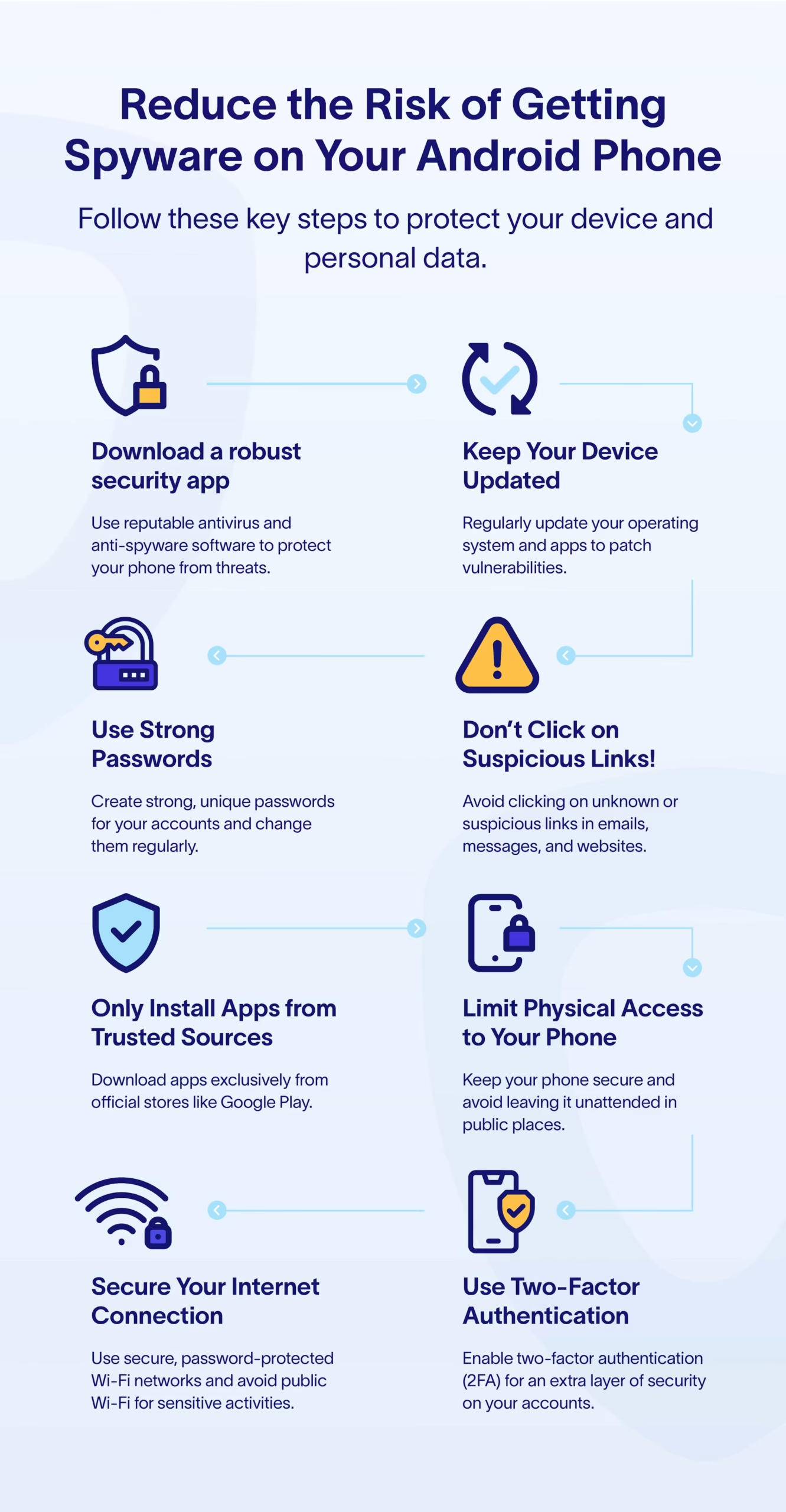
- Keep Your Android Updated
Android issues security patches to cover holes spyware exploits. Check Settings > Software Update frequently and install every patch immediately. Spyware thrives on outdated software versions slipping past defenses.
- Avoid Clicking Unknown Links and Downloads
Phishing emails, dodgy messages, and sketchy websites often harbor spyware. Never tap unfamiliar links or download unexpected files. Just one careless click can undo your clean reset.
- Use Strong Authentication Methods
Switch to fingerprint or facial open up if your phone supports it. Use complex PINs and enable two-factor authentication for your accounts. These steps block spyware that tries to record your taps and passwords.
- Review App Permissions Carefully
After resetting, check every app’s permissions (Settings > Apps > Permissions). Cut off unnecessary access—location, mic, camera, messaging. Spyware often piggybacks on these to spy on you remotely.
- Install a Trusted Anti-Spyware Scanner
Choose reputable free anti-spyware apps that update frequently. Run scans periodically. Some spyware is cunning, bypassing Android’s native defenses until detected by third-party tools.
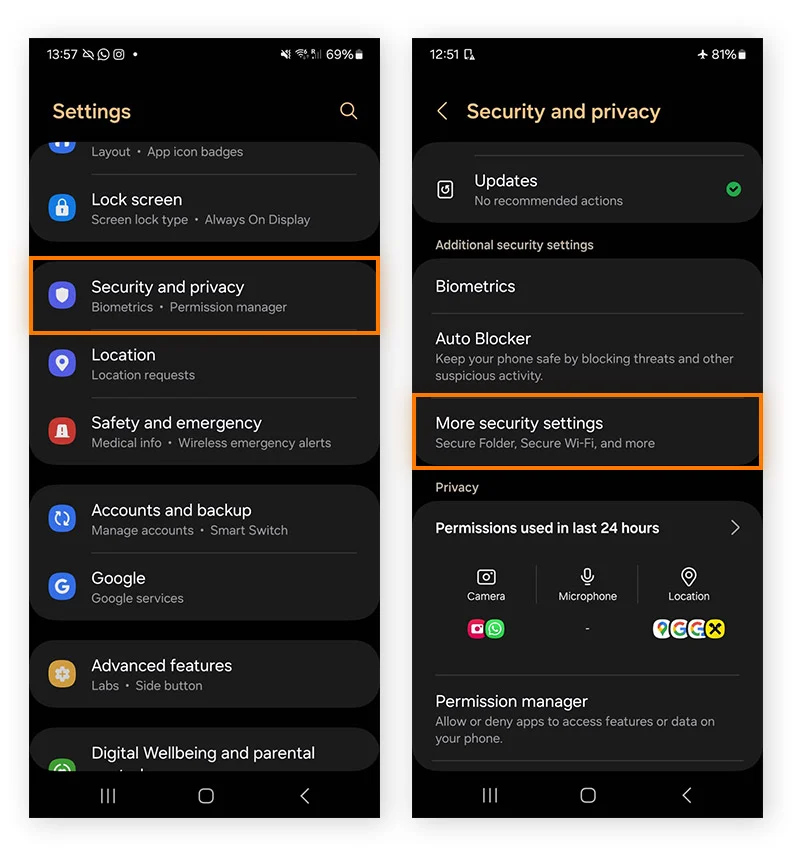
- Disable Unknown Sources Installation
Keep “Install Unknown Apps” off everywhere except maybe your browser when really needed. Allowing sideloading is a classic way spyware sneaks past Google Play’s screening.
- Monitor Battery and Data Usage Regularly
Watch your battery life and mobile data after reset. Sudden spikes often signal spyware running background tasks or trying to reinstall itself without your knowledge.
- Consider a Secure VPN for Daily Use
A VPN encrypts your internet traffic, making it harder for spyware to capture or send out data. Choose VPNs with strict no-logs policies to protect your phone’s secrets.
Following these steps builds a solid fortress. A factory reset wipes out spyware lurking where you can’t access. But staying vigilant—updating, scanning, and tracking strange activity—keeps your Android safe over time. Detecting spyware manually demands patience, but care and awareness beat endless resets. The US Cybersecurity and Infrastructure Security Agency shares well-tested Android advice matching these tactics. Android Security Recommendations by CISA.
Common Concerns About Android Spyware Detection and Removal
Spyware Detection Accuracy Depends on Multiple Factors
Detecting hidden spyware on Android phones isn’t simple. A lot depends on the tools and methods you choose. Some spyware hides cleverly, slipping past usual antivirus apps. Special anti-spyware software, or even manual digging, is often necessary. Accuracy improves with automatic scans followed by your own checks. Phones that aren’t rooted limit system access, making detection harder.
Spyware’s Effect On Battery Life Varies
Spyware running quietly in the background drains battery by constantly using the CPU, network, or sensors. Yet, some malicious apps are designed to be stingy with power, avoiding suspicion. Just watching battery drain alone won’t catch every case. Look for sudden battery drops combined with overheating or slowdowns to spot possible spyware.
Factory Reset Does Not Always Remove All Spyware
A factory reset wipes most user apps and data off the device. But some advanced spyware burrows deep into system partitions or tricks recovery tools to survive. To fully clear that kind of threat, you might need to reflash the device firmware directly from the manufacturer or consult a pro. Still, a factory reset remains the smart first step against common threats.
Manual Checks Complement Anti-Spyware Apps
Manual checks involve looking at app permissions, unknown apps installed, device administrator settings, and unexpected spikes in data use. These methods work best on phones without root, where scanners might miss stealthy spyware pieces. Knowing your phone’s usual behavior helps you catch subtle shifts caused by spyware.
Free Anti-Spyware Apps Have Limitations and Benefits
Some popular free anti-spyware apps catch many threats well but often require payments for advanced removal or deeper scans. They differ in how much battery and CPU they use, user friendliness, and false alarm rates. Pairing trusted free apps with manual checks can provide decent protection without immediate cost.
Network Data Usage Is An Important Spyware Indicator
Spyware frequently communicates with remote servers, sending stolen info out. This activity shows up as unusual background data use. You can examine Android’s data usage settings to see which apps are most active. Strange data spikes during idle periods can hint at spyware, even when battery life looks fine.
Rooting The Device Expands Spyware Detection but Risks Security
Rooting your Android open ups the ability to scan deeply for hidden spyware beyond normal apps’ reach. However, it also opens security holes and typically voids your warranty. Rooting suits only advanced users who understand the risks and can manage the added responsibility.
Spyware Often Exploits Accessibility Permissions
Many spyware variants hijack Android accessibility permissions to secretly spy on users and control phones. Checking and disabling unnecessary accessibility rights cuts off major spyware tactics. Be sure to review these settings, especially in device admin menus and app permissions.
Regular Updates Reduce Spyware Risks
Keeping your Android OS and apps updated patches security flaws spyware exploits. Older versions are more vulnerable. Enabling automatic updates and carefully managing app permissions helps keep spyware at bay.
Disconnecting From Networks Aids Spyware Containment
Switching off Wi-Fi, cellular data, and Bluetooth severs spyware’s connection to command servers. This blocks data leaks and halts control signals during cleanup. It’s a simple, practical step to limit damage while investigating.
Cloud Backups Can Retain Spyware Residues
Cloud backups may contain infected files or compromised app settings. Restoring from those backups risks reintroducing spyware. Be selective about what you back up and scrutinize synced data closely before restoring a wiped phone.
Signs Of Spyware May Mimic Legitimate App Behavior
App crashes, unexpected data surges, or slowdowns can have innocent causes like bugs or hardware issues—not always spyware. This overlap complicates detection. Confirming spyware often requires multiple warning signs or expert analysis.
Using Official Sources For Spyware Information Is Key
Rely on security advisories from trusted places like Google’s security blog or established cybersecurity organizations. Official sources stay current with new Android versions and emerging threats, offering reliable guidance on detection and removal.
Preventing Spyware Is Preferable To Post-Infection Removal
Avoiding unknown app installs, steering clear of suspicious links, and using app verification tools builds strong defense layers. Prevention slashes infection risk and spares you complicated removal efforts later.
Third-Party Security Tools Complement Android’s Native Protection
Android’s Play Protect scans for malware but often misses many spyware variants. Adding specialized third-party apps that focus on spyware strengthens your defense. These tools catch emerging threats tracked by groups like the U.S. Cybersecurity and Infrastructure Security Agency (CISA).
Persistent Spyware May Require Professional Malware Analysis
Some infections linger despite resets and standard cleanup. Rootkits or complex payloads might be involved. Professionals deploy forensic tools to analyze suspicious behavior, inspect deep system partitions, and flash custom wipes. Though expensive, this thorough approach suits high-risk or business-critical devices.