Every day, more gadgets in our homes link to the internet—thermostats, cameras, lights, even kitchen appliances. But it also cracks open doors for cyber threats. If you care about privacy, you need to know how to spot malware on your smart devices. Ignoring the risk leaves your whole network exposed.
It can hijack devices or quietly recruit them into botnets that launch huge cyberattacks. Smart home malware doesn’t just steal your info. One infected gadget can sneak into your entire home network. The fallout isn’t just money lost. It can include privacy invasions and even control of your heating or appliances.
These dangers grow every day. That means manual checks stand as your first line of defense—recognizing odd signs, scanning for malware, and quarantining infected devices before they spread. Attackers target weak default passwords, outdated software, and unsecured communication protocols on many smart devices. Unlike regular computers, most smart devices don’t have antivirus or strong security built in.
Personal and financial data getting stolen
Important services like heating or security cameras going offline
Your gadgets becoming pawns in criminal networks without your knowledge
Private audio or video feeds being watched unauthorized
Being more open to ransomware or extortion demands
Even top brands’ devices can remain quietly compromised for months, as cybercriminals rapidly change tactics until patches arrive. Checking your smart devices for malware isn’t just recommended anymore. Every new smart speaker or sensor adds a doorway hackers can sneak through.
Understanding Malware in Smart Home Devices
To stay ahead, you should:
Watch your network for sudden spikes or strange connections
Update firmware and software as soon as patches drop
Swap default passwords for strong, unique ones
Put devices on separate network segments to limit damage if hacked
Use security tools made for IoT and smart home gear
Detailed guides explain how these moves combine into solid protection. This guide focuses on practical ways to spot infections and block further harm. The Cybersecurity and Infrastructure Security Agency (CISA), among others, monitors how smart homes increasingly become targets within larger cybercrime operations.
Knowing What To Look For
Yet some malware runs stealthy, buried inside normal data flows. Signs of infection often fly under the radar: devices slow to respond, sudden restarts, or flickering indicator lights. Catching these needs some tech know-how and a strong sense of what normal device behavior looks like.
Learning how to check if your smart home devices carry malware lets you stop threats early. That shortens an infection’s lifespan and protects your whole digital setup. Think of it like a health check for your home’s nervous system. Stay aware, inspect carefully, and follow security proven methods to keep your connected life safe (in practice).
The main points
How to scan smart home devices specifically for malware infections
Network monitoring tools and techniques for detecting infected smart home devices
Step-by-step guide to isolate and quarantine infected smart home devices
Examples of common malware types targeting smart home devices
✅
Fact-Checked
Editorial Review
🧠
Expert Analysis
Sourced & Cited
🗓️
Updated 2026
Current & Accurate
Symptoms of Malware Infection in Smart Home Devices
Usually, these gadgets run quietly and without fuss. Spotting signs that your smart home devices might be infected with malware means watching for weird behavior. Malware, though, throws a wrench in that routine. Catching the infection early can stop it from jumping to other devices before serious damage sets in.
Unexpected Behavior Changes
Devices flick on or off by themselves. Settings shift without any input from you. Apps crash or act glitchy. Smart bulbs flash weirdly. Cameras stream at odd hours. Thermostats crank temperatures up or down for no reason. Those quirks mean something—or someone—gained control.
Sluggish or Unresponsive Devices
If your gadgets suddenly slow down or freeze, malware could be hogging CPU cycles. The malicious code runs hidden tasks eating up memory and processing power. This isn’t the usual creakiness of an update or age. It hits fast, hard, and without warning.
Unusual Network Traffic
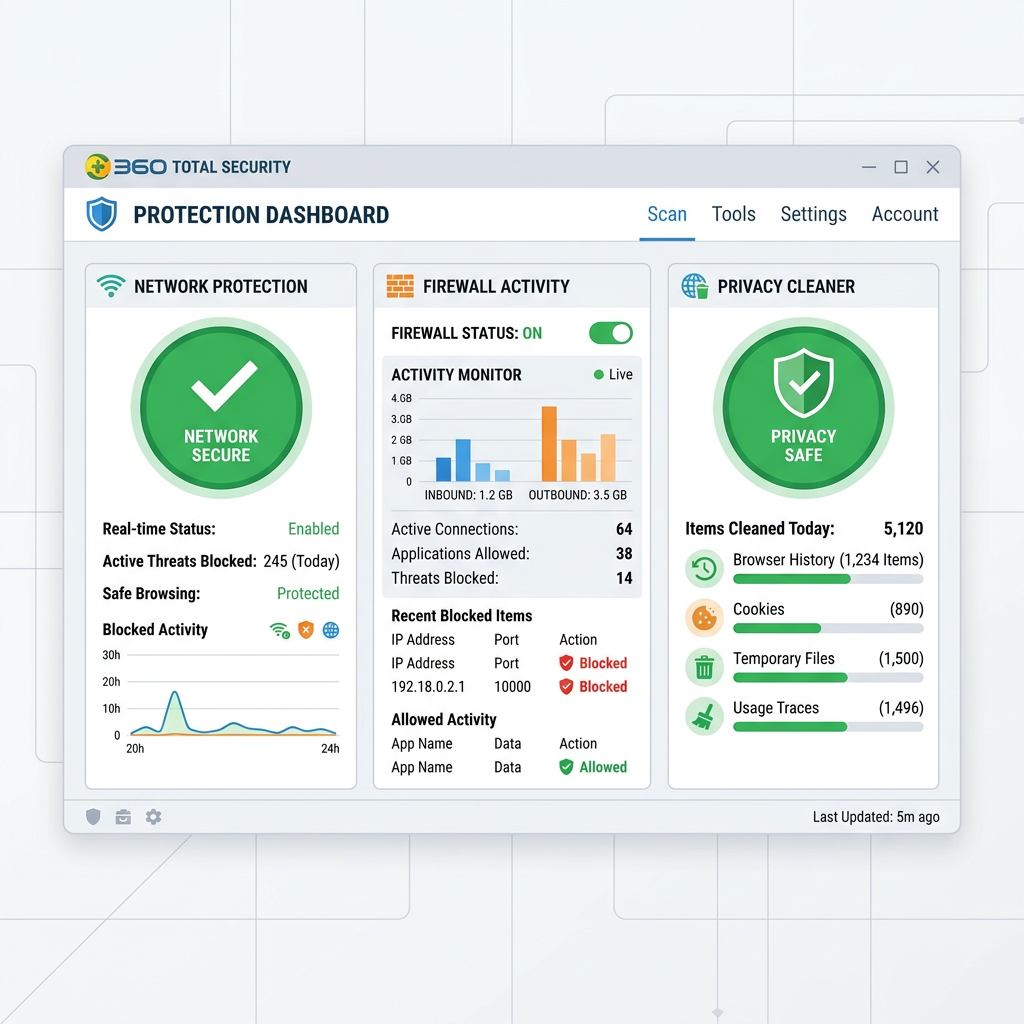
Monitoring network traffic is critical. Malware may flood uploads or downloads with junk data, pinging strange external servers. Spikes in data when devices should be idle suggest command-and-control activity or data theft. Tools like Wireshark or Fing are your front-line detectors for these signals.
Unknown Devices on Your Network
An infected device might open the door to uninvited guests on your Wi-Fi. Seeing unfamiliar devices in your router’s connected list is a clear red flag. Regular router scanning helps spot these freeloaders quickly.
Frequent Disconnections or Connectivity Issues
Devices that drop Wi-Fi constantly or reconnect randomly might be in malware-induced chaos. These interruptions often come alongside slowdowns and weird network spikes.
Excessive Battery Drain
Battery-powered devices losing juice at an unusual rate could be running malware processes nonstop. If you didn’t install anything new or push updates, that rapid drain screams infection lurking within.
Changes in Device Settings Without Permission
Wi-Fi passwords, admin logins, or linked cloud accounts suddenly change with no authorization? Malware is meddling. Hackers alter these to stay hidden and make removal tougher.
Alerts from Security Software or Network Appliances
Sometimes security tools detect suspicious activity or known malware signatures. Ignoring those alerts risks wider breach or deeper infection.
Unfamiliar Pop-Ups or Erratic Notifications
Random messages, alerts, or error pop-ups on your smart hubs or companion apps often point to compromised firmware or malware-triggered glitches.
Audio or Video Activation When Idle
Cameras, microphones, or smart speakers turning on without your command probably means malware is spying.
Early detection restricts malware’s spread inside your home. Knowing these symptoms pushes you to act fast. The real trick is linking weird device behavior with odd network patterns. That means inspecting each device, poring over logs, and watching security alerts closely.
Details like port numbers, burst patterns, and external IP addresses fill in the puzzle pieces. Traffic monitoring exposes “phone home” signals manufacturers often miss. Finding infections requires stitching together device data, network clues, and security warnings.
Experts insist on constant vigilance because malware authors shift tactics regularly. The threat remains sharp heading into 2026, especially as homes connect more gadgets than ever before.
These symptoms signal infection and demand quick isolation of affected equipment to stop malware before it takes down critical gear. Clear red flags—odd power use, strange device actions, sudden data surges—can’t be ignored.
Common Signs Your Smart Home Device May Be Infected
For solid advice on malware behavior and defense in connected spaces, see the U.S. Cybersecurity and Infrastructure Security Agency’s guidance at CISA IoT Security. This site stays updated with tips to detect and fight smart device infections across complex home networks.
Step-by-Step Guide to Check Your Smart Home Devices for Malware
You need to dig into what’s happening on your network, check how each device behaves, and confirm the firmware hasn’t been tampered with. Finding malware in your smart home gadgets takes patience and some tech know-how. This guide shows you a hands-on way to catch nasty infections early before they turn your home network into a launchpad for bigger cyber attacks.
Map Your Smart Home Device Inventory
Write down every internet-connected gadget you own—thermostats, security cameras, smart plugs, voice assistants, and so on. Knowing exactly what’s connected is your first step to spotting weird or unexpected activity.
Monitor Network Traffic Using a Packet Sniffer
Use tools like Wireshark or tcpdump to capture data your devices send and receive. These sniffers can reveal unusual outbound connections, traffic surges out of the blue, or chats with shady IP addresses—clear signals you’ve got malware on board.
Check for Persistent High Capacity Usage
Look at your network’s capacity on your router’s dashboard or apps such as GlassWire. If a single device sends or receives large amounts of data continuously or in bursts, malware might be stealing info or feeding a botnet.
Review Device Logs for Anomalies
Peek into system or app logs when your device lets you. Some smart gear shows event logs through web pages or apps. Repeated failed logins, firmware changes you didn’t make, or constant connection failures often point to foul play.
Examine Firmware Versions and Updates
Make sure your devices run the latest firmware from trusted manufacturers. Old or unofficial firmware can be doorways for malware. Check your manual, then update directly through official apps or websites.
Use Network Scanners to Identify Open and Unusual Ports
Run scans with tools like Nmap to spot open ports and active services on your devices. Malware loves to hide on weird or high-numbered ports to dodge detection, so unexpected open doors could be backdoors in disguise.
Deploy IoT-Specific Security Tools
Try IoT-focused security platforms like F-Secure SENSE or Norton Core. They track device fingerprints and behavior to flag sketchy activity—such as unauthorized messages or unknown devices popping up in your network.
Isolate Suspected Devices on a Separate VLAN
See something fishy? Cut off that device by putting it on a different network segment or VLAN right away. This quarantine blocks malware from jumping to your printer, other smart gadgets, or your main internet connection.
Scan Devices with Vulnerability Assessment Software
Use scanners like Shodan or Nessus to hunt for known exploits and malware footprints. They rely on fresh threat databases to spot weak points and infected devices.
Reset Devices to Factory Defaults
If malware feels confirmed, do a hard reset. Restoring factory settings wipes out any sneaky changes, but you’ll need to set everything up again carefully to stop reinfection.
Change Default Passwords and Strengthen Authentication
Many hacks happen because passwords stay at factory defaults. Swap them for strong, unique ones and turn on two-factor authentication if your device supports it—this burns a firewall against unauthorized entry.
Enable Device and Network-Level Encryption
Turn on encryption protocols like WPA3 for your Wi-Fi and SSL/TLS for devices that support those. Encrypted connections make it way tougher for malware to eavesdrop or send stolen data unnoticed.
Configure Intrusion Detection Systems (IDS) in Your Home Network
Install IDS tools like Snort or Suricata that constantly watch your network traffic. They alert you when patterns matching malware or hacks pop up, giving you a heads-up before things spiral.
Review Connected Device Behavior Over Time
Keep an eye on how your smart devices act normally. Checking their patterns regularly helps you spot slight shifts that could mean new infections or malware tricks evolving.
Consult Manufacturer Support and Security Advisories
Device makers often post security updates and advice about malware threats targeting their products. Following these bulletins lets you patch vulnerabilities or apply removal tools when needed.
From spotting every device to isolating problems, this layered approach boosts your reach and keeps your data safer (give or take). Doing all this creates a strong defense to find malware hiding in your smart home and stop it from spreading silently.
Smart home gadgets typically talk over standard Wi-Fi or Ethernet but often don’t have antivirus built-in. That’s why packet sniffers and intrusion detection software are key (roughly). These tools show detailed logs—like destination IPs, port numbers, and message contents. IDS programs spot malware activity by watching for suspicious patterns much deeper than just watching devices manually. Such technical insight is a must for modern malware hunting.
Using VLANs to quarantine suspicious devices sets up a virtual fence inside your home network, stopping the infected gadget from touching sensitive parts like printers or other IoT nodes. This containment limits damage while you figure out what to do next. Many advanced routers come ready with VLAN software, or pros can install it for you.
Malware sometimes throws open odd ports to sneak onto command-and-control servers or steal your data. Network scanners bring out devices that act strangely by listing open ports and services. Flagging these abnormalities fast cuts off their external messaging and lowers risk.
Tools & Techniques to Scan Smart Home Devices for Malware
IoT malware changes fast. That’s why scanners like Nessus need constant updates from threat feeds. They check your device settings, firmware, and network traces to give you smart, timely warnings.
You must carefully reinstall updates and security settings afterward, or your device stays vulnerable. Factory resets scrabble away infected states but only as a first step.
Swapping default passwords for strong, unique ones and activating extra login security blocks brute-force and credential stuffing attacks that crooks use a lot. Layering on encrypted communications squeezes the chance that malware can listen in or hijack your info.
Manufacturers publish warnings about fresh threats hitting their gear. Staying tuned to these advisories helps you guard your smart home market and apply fixes before attackers get a foothold.
Using all these methods gives you the coverage you need to defend your connected home in an age of rising threats. Catching smart home malware mixes detective work, network engineering, and ongoing vigilance (for the most part).
How to Use Network Monitoring to Detect Infections
Recommended Tools for Detecting Malware in Smart Home Devices
Every connected gadget leaves behind digital traces. Catching those fast shrinks your risk. So, knowing which tools spot malware on smart home devices is key. How To Check If Your Smart Home Devices Are Infected With Malware means picking software that digs out strange behavior in the messy IoT market, stopping infected devices before they spread chaos unnoticed.
Network Scanners: Fing and Advanced IP Scanner
Fing runs on iOS and Android, scanning your local network to list all connected devices by their IP and MAC addresses. It flags strange devices, weird network activity, or unexpected connections. Advanced IP Scanner does much the same on Windows, mapping out devices with info on manufacturers and open ports—common doors for malware entry. Both tools warn you when unknown devices pop up on your network, giving an early heads-up about possible hacks.
Malware Detection Utilities: Malwarebytes IoT Scanner and Bitdefender Home Scanner
Because smart hubs and IoT gadgets often have weak spots, scanners focused just on IoT have appeared. Malwarebytes IoT Scanner runs quick tests for typical vulnerabilities and strange network chatter from your devices. Bitdefender Home Scanner adds cloud-sourced threat data, tagging devices acting like known malware or sending too much outbound traffic, often a sign data’s being siphoned off. Regular checks cut down the window where infections fly under the radar.
Firmware Integrity Checkers: Nmap and OpenVAS
Tampered firmware is one of the toughest malware forms to catch. Nmap isn’t just a port scanner—it fingerprints device OS and firmware versions, spotting unusual swaps that might mean malicious code replaced official software. OpenVAS is an open-source scanner that digs into IoT firmware for known bugs, missing updates, or dangerous setups. Running these tools often stops firmware attacks from hiding for months, quietly eating away at your system. Malicious code lurks here.
Packet Sniffers: Wireshark
Wireshark grabs raw network data from your smart devices and breaks down each packet. It reveals details like target IPs, strange encryption errors, or unexpected talks with dodgy sites tied to malware command-and-control servers. This close look uncovers sneaky malware hiding beyond reach of simpler scanners. But be warned: Wireshark’s tricky and demands solid networking know-how to make sense of its output.
Router-Based Security Suites: Bitdefender Box and Cujo AI
Some security gadgets sit at your router, watching all traffic in one place. Bitdefender Box connects to your network, scanning every device and alerting you to odd patterns. Cujo AI filters threats before they reach your gadgets. These boxes use machine learning trained on IoT-specific hacks, spotting infections live and cutting off malware’s sideways movements across devices.
Cloud and Vendor Official Tools
Manufacturers often offer firmware updaters or diagnostic tools aimed at their own devices. Using these helps spot brand-specific weak spots missed by general scanners. For example, your IP camera brand’s official firmware checker can find unauthorized changes that other tools overlook.
Regular automatic scans backed by manual packet checks offer a smart balance of ease and depth. Mixing these tools covers more ground because no single one spots every kind of malware. Start by mapping out your network devices, then watch for anything that’s out of place using these apps.
Fingerprint scanners work best with fresh databases listing new IoT malware signatures from worldwide threat feeds (in practice). Keep your tools updated to chase the latest malware tricks. Router-level gear must evolve, too, adjusting its detection as hackers create sneakier commands. Staying sharp with software built for smart home malware turns your house into a no-go zone for attackers, catching breaches early and cutting the time they hang around.
Government IoT security guidance lays out in-depth advice on scanning and securing smart devices, proving why a layered defense using these tools is key.
Essential Guidance on Malware Infection in Smart Home Devices
Recognizing Unusual Network Activity as a Sign of Infection
Your home’s data usage might suddenly jump. That jump often signals malware messing with your smart devices. Gadgets infected with malware often send unauthorized data back to hackers. Sometimes everything slows down. Other times unexpected spikes pop up. Checking outbound connections often catches these strange leaks or secret destinations.
Steps Involved in Scanning Smart Home Devices for Malware
First, find every device linked to your network. Then run tools like Nmap or IoT Inspector. These scan for weak spots and signs of being hacked. The tools spot odd open ports, firmware oddities, or hidden apps running quietly. Sometimes malware hides well, so running scans multiple times helps catch on-and-off infections missed at first.
The Role of Network Monitoring Tools in Detection
Wireshark and Fing dig deep into the packets your smart devices send and get. They show weird chatter with blacklisted IPs or strange DNS lookups — red flags for infection. Keep those tools updated constantly so they spot the newest tricks and protocol shifts crooks use.
Effective Techniques for Isolating Infected Devices
Found an infected gadget? Pull it off the Wi-Fi or tote it to a guest network with zero internet. That cuts hacker control fast. Some routers let you carve out VLANs or set access limits to quarantine bad devices. This stops malware from spreading without breaking your entire home network.
Importance of Firmware Updates in Prevention
Makers drop patches to close holes hackers exploit. Checking for updates regularly — or letting devices update automatically — boosts your defenses. Putting off updates hands malware a persistent foothold. Software flaws are fixed often, but threats evolve before you blink.
Restoring Devices After Malware Removal
A factory reset wipes deep-rooted infections hiding in your devices. Back up your settings first, but beware: backups made after infection might carry malware. Flashing firmware from official sources wipes everything clean. Only trust trusted images to stop hidden malicious code.
Role of Strong Passwords and Network Segmentation
Default or weak passwords still open doors wide for malware. Swapping them out for strong, unique ones slices unauthorized access sharply. Segmenting your network — like keeping IoT gadgets apart from your laptops or phones — limits how far malware can roam and damage once inside.
Recognizing Signs That Are Not Malware
A glitch or a random disconnect doesn’t always mean malware lurks. Software bugs, signal interference, or failing hardware often cause the same symptoms. Check network logs, device updates, and recent services before calling it an infection.
Seeking Professional Help and Reporting Infections
When in doubt, ask cybersecurity experts or your device’s support team. They can save you from making costly mistakes. Reporting infections to organizations like the Cybersecurity and Infrastructure Security Agency helps track attacks hitting smart homes across the country.
Malware threats shift fast, but so should your defenses. Vigilant scanning, smart monitoring, quick isolation, timely updates, and solid passwords cut off most infection routes. For deeper dives into network monitoring, the National Institute of Standards and Technology shares detailed guidelines in NIST Special Publication 800-83 Revision 1.