Understanding the Critical Role of Two-Factor Authentication in Web Hosting Security
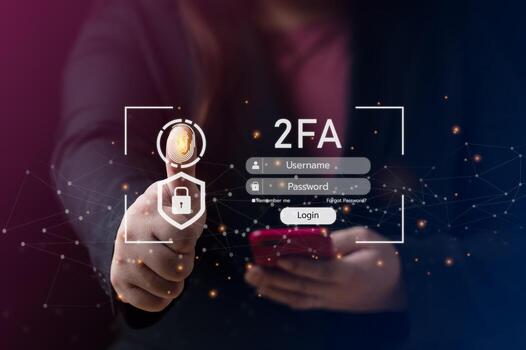
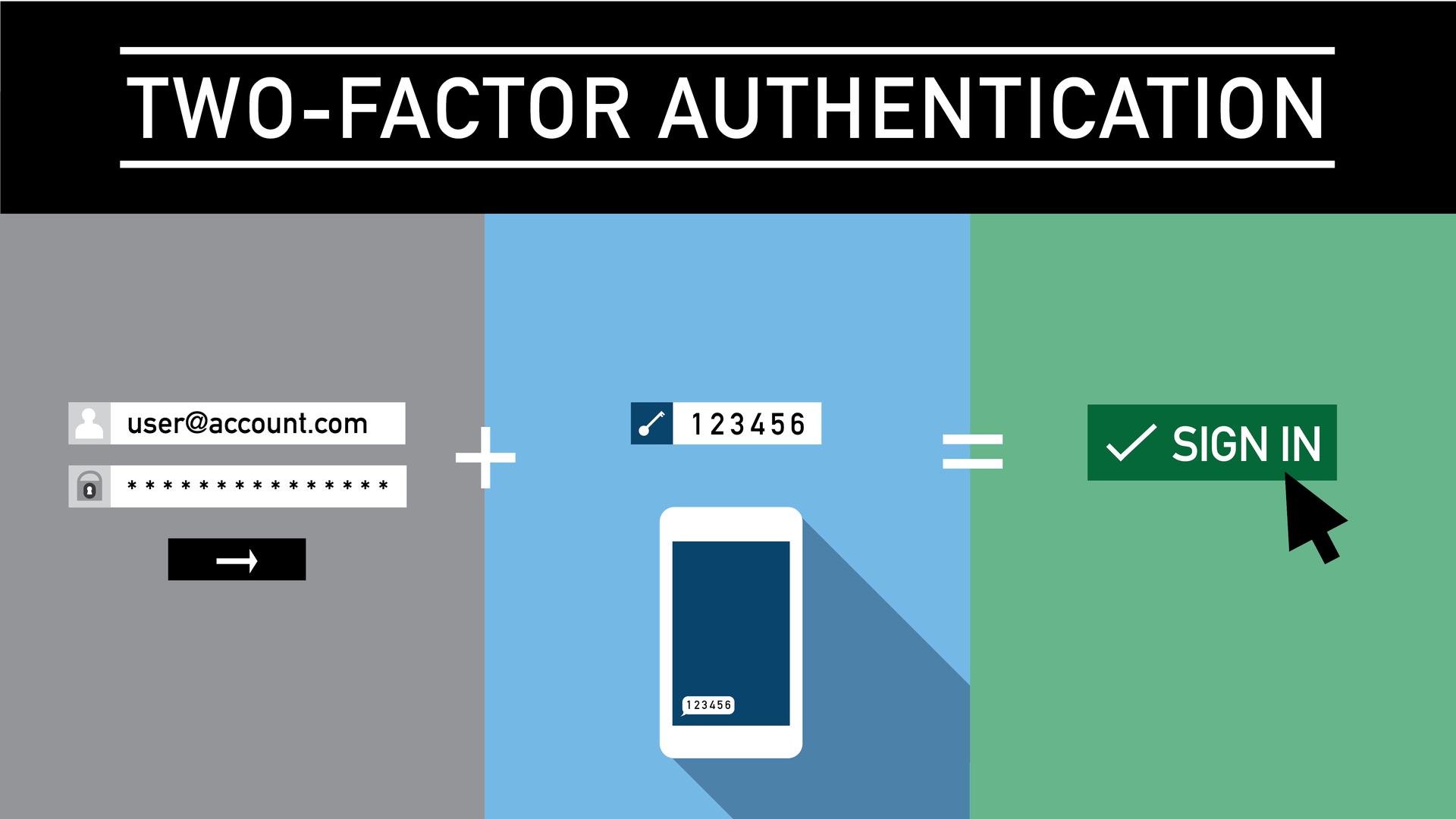
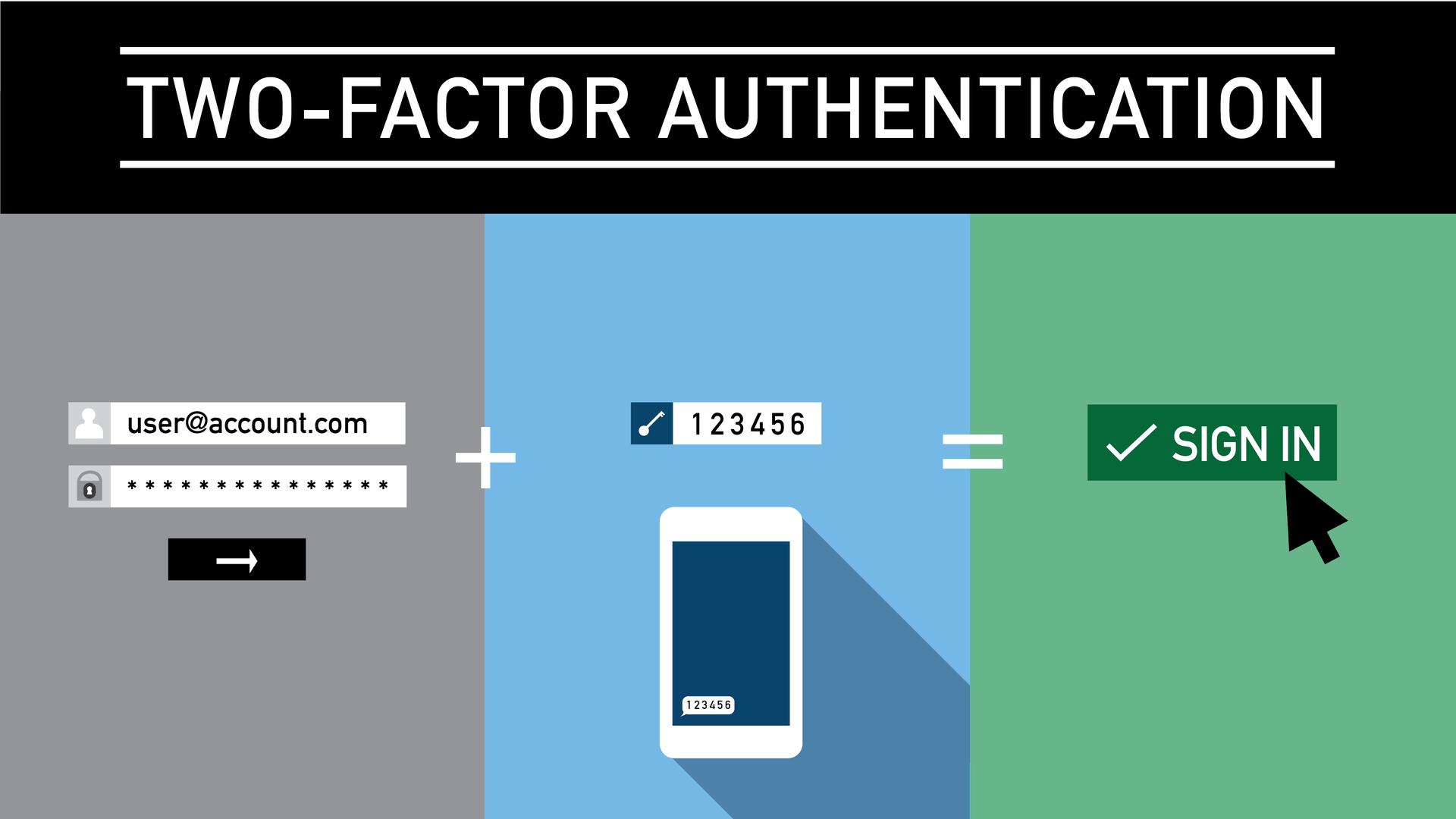
Usually, that’s a password plus something you carry—a phone app or a hardware token. Two-factor authentication, or 2FA, means you prove who you are with two different things before logging in. These two steps together make it much harder for hackers to sneak past weak password-only defenses.
Hackers hit websites to steal data, mess with files, or shut down services. 2FA isn’t just tech talk. Passwords alone get broken by phishing, brute force attacks, or leaked dumps of credentials. Adding a second check with 2FA cuts those risks drastically. Attackers face a much tougher wall to climb over.
It locks down admin access that controls DNS, website files, and databases. If you run a website, using 2FA on your hosting panel brings real benefits. That’s a big help for keeping your brand clean and your user info safe. It also reduces the risk of costly downtime caused by hacks, which can both drain revenue and harm SEO rankings. Users trust sites more in 2026’s brutal online threat scene when 2FA is turned on (as a rule).
Here’s what 2FA does for hosting accounts:
- Adds security by demanding more than just a password.
- Slashes successful hacks from phishing or leaked credentials.
- Shields sensitive actions on the hosting dashboard that affect site uptime and data.
- Helps comply with data laws that now want multi-factor steps.
- Cuts stress by shrinking attack points against cyber threats.
Passwords still matter a lot, but if you lean on them alone, you’re leaving the door wide open. Most web hosting panels let you plug in 2FA easily. It works through authenticator apps, SMS codes, or physical security keys. This gives you options that fit your habits while tightening security.
What is Two-Factor Authentication (2FA)?
Once you get these basics, you’re ready for detailed guides on turning on 2FA in popular hosting platforms. Many pros call 2FA a rare security win that costs little but packs a powerful punch, keeping admins a step ahead in the battle against account takeovers. Detailed steps, common issue troubleshooting, and explanations of why 2FA offers stronger hosting protection than typical online logins appear throughout. This doesn’t just stop hacks—it toughens your whole site management setup and earns user trust.
Whether you’re a hobbyist or pro managing hosting panels, this guide delivers clear, practical advice. It turns a tricky security feature into a simple must-have safety net for any site worth saving. 2FA’s value goes beyond blocking fake logins; it’s a core part of strong security habits needed now, as standards like the National Institute of Standards and Technology (NIST) spell out in their authentication guidelines. Armed with this knowledge, you’ll protect your site and users with real confidence.
- Step-by-step 2FA setup instructions for multiple standard hosting panels
- Visual aids (screenshots or videos) specifically showing 2FA setup on hosting panels
- Troubleshooting common 2FA setup and login problems on hosting panels
- Security proven methods and app recommendations for hosting panel 2FA
Prerequisites for Enabling Two-Factor Authentication on Hosting Panels
These include having the right permissions, using tools that work, and knowing what you’re doing. Before you switch on two-factor authentication (2FA) for any common web hosting panel, some basics must line up to avoid headaches.
- Proper Account Access Rights
You need admin-level access or something close to that on the web hosting panel. Most control panels hide 2FA settings unless you’re allowed to change account or server details. Without those permissions, the option might not even show up or be clickable.
- Compatible Authentication Applications or Devices
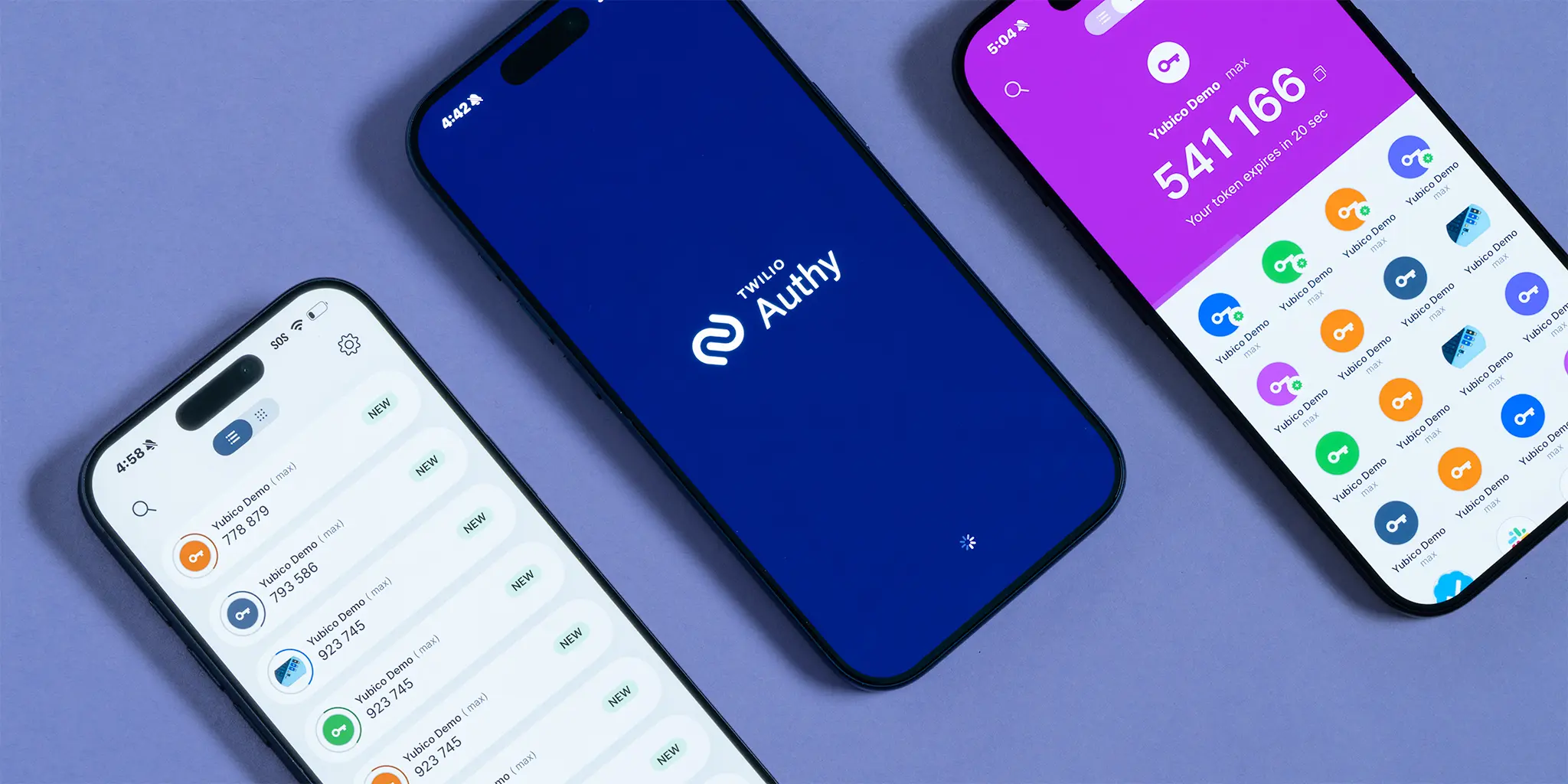
2FA usually means linking your hosting account to an outside device or app. The usual suspects use Time-Based One-Time Passwords (TOTP). Think Google Authenticator, Microsoft Authenticator, Authy, or FreeOTP. These apps spit out temporary number codes that sync with the server, making your login stronger than just a password. Some panels also support hardware keys like YubiKey, which use Universal 2nd Factor (U2F) standards—a physical dongle instead of a code. Physical keys offer extra security.
- Internet-Connected Mobile Device or Security Key
You’ve got to have your phone or security key on hand, up and running, when setting up and logging in later. Most people use smartphones with the latest OS for their authenticator apps. Being online during setup helps since these apps often need to connect to the internet to sync up.
- Familiarity with Your Hosting Panel’s Interface
Hosting platforms aren’t all the same. Whether it’s cPanel, Plesk, DirectAdmin, or Webmin, each has its own menu names and layouts. Knowing where to find the security or account settings speeds things up. For example, cPanel usually has built-in 2FA modules. Plesk supports 2FA directly and works smoothly with third-party apps. Others might require manual tweaks or extra plugins. If you don’t know the panel, you might get stuck searching.
- Backup and Recovery Options Ready
Don’t risk losing access if you lose your phone or key. Prepare backup codes or alternate login methods before turning on 2FA. Almost all hosting panels offer printable backup codes or ways to recover through email. Keep those backup options somewhere safe, away from your hosting environment.
If you tick these boxes, your hosting account’s security will get a solid boost. More apps and devices keep popping up, making multi-factor protection easier to adopt throughout 2026. For step-by-step how-tos on different hosting panels, check out the next sections—you’ll find guides custom to each one that won’t waste your time.
Official guidelines, like those from the National Institute of Standards and Technology (NIST), support this approach. They say multi-factor authentication needs both system support and user readiness, just like these points outline—see their Digital Identity Guidelines.
Detailed Step-by-Step Guide to Enable Two-Factor Authentication on Popular Hosting Panels
- Log In to Your Web Hosting Control Panel
Head to your hosting panel’s login page, either through your provider’s website or by typing your server’s IP address. Punch in your username and password before digging into the security settings.
- Handle to the Security Section
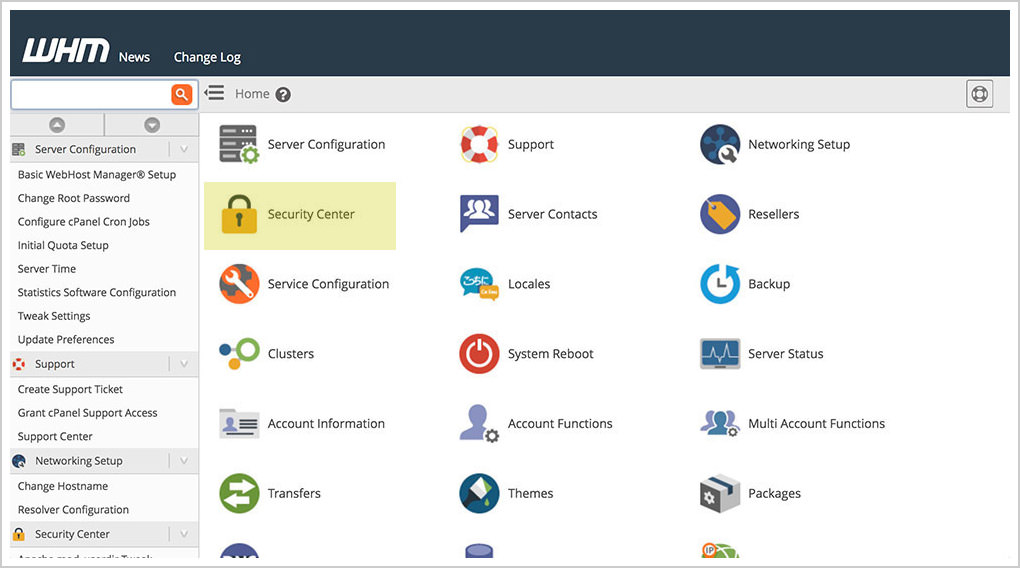
Inside the control panel dashboard—this could be cPanel, Plesk, or DirectAdmin—hunt down the security section. This is where you’ll find password settings, SSL certificates, and usually the 2FA setup options.
- Access the Two-Factor Authentication Setup
Search for “Two-Factor Authentication,” “2FA,” or something like “Security Plugins.” Sometimes it’s buried in submenus named “Account Security,” “User Manager,” or “Preferences,” depending on the control panel.
- Choose the User Account to Secure
If there are multiple users or accounts, pick the right profile to enable 2FA on. Otherwise, you might lock yourself or someone else out by accident.
- Start the 2FA Enrollment Process
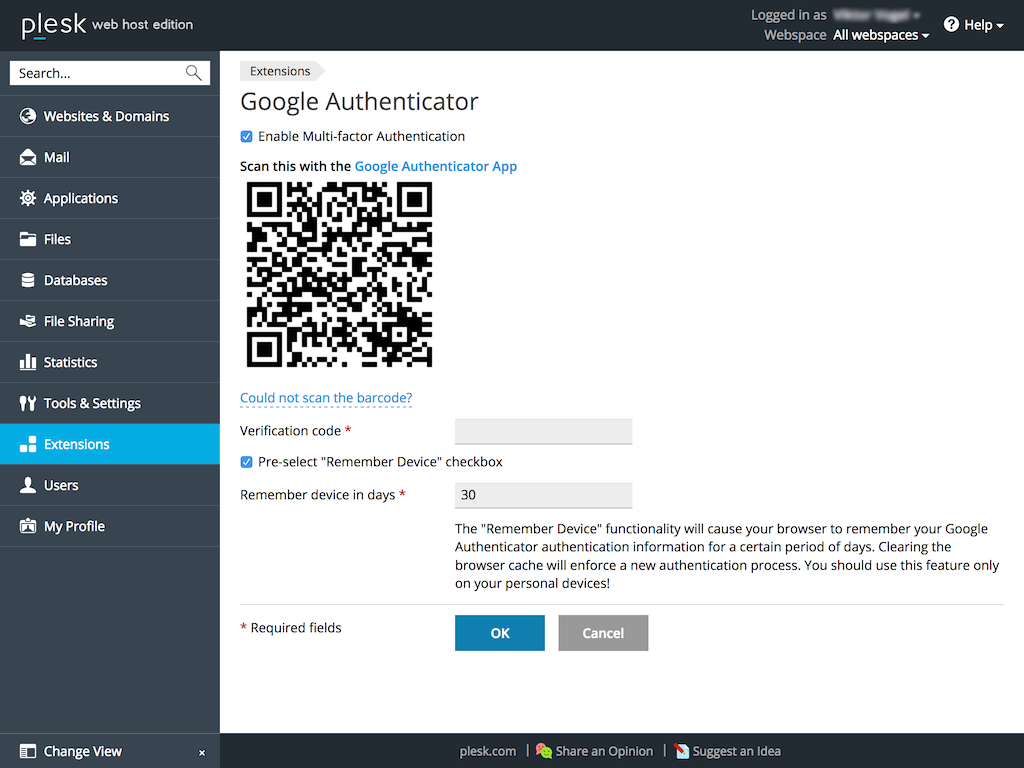
Click the button labeled “Enable” or “Set Up Two-Factor Authentication.” The panel will then spit out a unique QR code or secret key for linking your authenticator app.
- Open Your Preferred Authenticator App
Grab your phone and launch a TOTP app like Google Authenticator, Microsoft Authenticator, or Authy. These apps pump out time-sensitive codes every 30 seconds for your second login step.
- Scan the QR Code or Manually Enter the Setup Key
Use the app’s scanner to capture the panel’s QR code. If scanning isn’t an option, type in the secret key by hand instead.
- Confirm the Account Added in the Authenticator App
Double-check that the entry in your authenticator matches your hosting user name or email. This avoids mixing up codes if you juggle multiple 2FA accounts.
- Enter the 6-Digit Verification Code Back into the Hosting Panel
Your authenticator app shows a six-digit code that changes every half-minute. Pop the current code into the verification box on the hosting site and send it to prove it’s really you.
- Save or Enable 2FA for Your Account
If the code checks out, save the new 2FA settings. The panel often offers backup codes or recovery keys here—grab those, they’re lifesavers if your phone breaks.
- Test the Two-Factor Authentication
Log out, then log in again. After typing your username and password, the system should ask for the second code from your authenticator app. This confirms 2FA works as intended.
- Store Backup Recovery Codes Securely
Once you have backup codes, keep them somewhere safe offline or in an encrypted password manager. They’re your fallback if you lose access to your authenticator app or device.
- Repeat the Setup for Multiple Users When Needed
In hosting setups with many users, repeat this 2FA process for each admin account. That layers up your security and shrinks the danger if one set of credentials gets stolen. Stay secure.
Setup Specifics for Common Hosting Panels
- CPanel:
Head to Security > Two-Factor Authentication. CPanel’s interface uses straightforward toggles and clear prompts for scanning QR codes and verifying codes. Backup codes pop up automatically after you finish setup.
- Plesk:
Under Tools & Settings > Security > Two-Factor Authentication, Plesk offers flexible options. You can make 2FA mandatory for all users or just some selected ones. The QR code shows up as soon as setup starts.
- DirectAdmin:
Look under Admin Settings > Two-Factor Authentication. DirectAdmin supports both email and TOTP apps. Follow the panel’s instructions to scan or enter codes, then confirm by typing the generated verification code.
This ritual ensures your hosting accounts get real, usable extra protection. Every panel looks different, but the core moves don’t change—log in, find security, set up 2FA, scan QR, enter code, confirm, test.
Installing two-factor authentication on cPanel, Plesk, or DirectAdmin cuts the risk of unauthorized logins dramatically. This guide breaks it down simply, even if you’ve never fiddled with hosting control panels.
These steps form the backbone of “A Beginner’s Guide To Setting Up Two-Factor Authentication (2FA) On Standard Web Hosting Panels,” turning complex security moves into manageable chunks. Testing and backup code safekeeping cover the typical traps and give every hosting user a practical way to stay safe.
For more technical details and solid advice on authentication apps and 2FA standards, check out the National Institute of Standards and Technology (NIST). Their NIST Digital Identity Guidelines offer trusted rules on how to implement multi-factor authentication properly in IT systems for 2026 and beyond.
Recommended Authentication Apps for Secure Hosting Access
- Google Authenticator
This app is light and simple, working with most web hosting panels that use two-factor authentication. It makes time-based one-time passwords (TOTPs) that refresh every 30 seconds. It doesn’t offer backups, but it sets up quickly and works offline without a hitch. If you want something straightforward and fast, this app fits the bill.
- Authy
Authy shines when you use multiple devices and want encrypted cloud backups. Manage a bunch of hosting accounts? Then switching between phone, tablet, and desktop feels smooth. Lost your device? Authy can restore your tokens, saving a major headache common with 2FA apps. It offers push notifications and secure PINs, great for admins juggling lots of web hosting logins.
- Microsoft Authenticator
This app gives you TOTP codes plus push notifications for Microsoft accounts. It blends well with Microsoft’s wider services. Passwordless sign-in and biometric security make it handy beyond hosting panels. The interface stays simple, but the security is solid. Professionals working inside Windows markets will find it flexible and trustworthy.
- Competing platforms Authenticator
Mostly known as a password manager, rival tools also has an authenticator app that handles push notifications and TOTPs. If you’re already in the alternative options market, the integration feels smooth. You get one-tap approvals on hosted accounts, and encrypted backups mean you’re less likely to lose your 2FA codes when switching devices.
- Duo Mobile
Duo Mobile aims at business users needing more than just 2FA codes. It offers one-tap push approvals, device health checks, and detailed logging. A bit more complex than Google Authenticator, but hosting providers and admins who manage different users and access levels get more control. It’s made for serious endpoint security.
- FreeOTP
FreeOTP takes a no-frills route with open-source code that draws privacy-conscious users. Supporting TOTP and HOTP standards means it works with many hosting control panels. The design is barebones, no cloud backup offered. What it gives is simple, solid security with no vendor lock-in.
- AndOTP
Built on FreeOTP’s open-source base, andOTP adds encrypted backups and import/export tools. Perfect if you want open-source trust but don’t want to worry about losing tokens by accident. It supports manual setup for various hosting panels. Android users who want extra control over their authentication data like this one.
- Yubico Authenticator
Made to work with YubiKey hardware, this app links physical tokens with mobile ease. You tap or insert your YubiKey when logging in to your hosting panel. That hardware boost is key in high-risk settings, where software-only 2FA might fall short. The companion app handles TOTPs, taming the complexity of these setups.
Your choice depends on whether you want device portability, backup options, integration with other services, or open-source clarity. Convenience matters. Each one addresses core two-factor authentication needs, but in different ways. Picking an app that slots well into your web hosting panel cuts login hassle and beefs up defenses against hackers. Take Authy or Microsoft Authenticator: they ease switching devices by providing backups and syncing, whereas Google Authenticator keeps things simple, offline, and free of cloud dependencies.
The growing variety mirrors a bigger push to lock down hosting with stronger multi-layered authentication. This trend is backed by top security bodies in NIST’s 2026 Digital Identity Guidelines. With options built for different needs, the right pick balances security and user ease, not just one or the other.
Common Setup Issues and Troubleshooting Tips

- Time Sync Errors Causing Authentication Failures
2FA apps need the clock to be right. If your device or server time drifts, codes won’t match. Check that both your server hosting panel and your phone use network time protocol (NTP) to set the clock automatically. Setting time by hand or a flaky internet connection? That throws tokens off and blocks logins.
- Losing Access to the 2FA Device
People lose or reset their phones, locking themselves out. Always save those recovery codes you get when you set up 2FA. Each code works once to get you back in without the app. Didn’t save them? Then you’ll have to call your web host’s support and prove who you are some other way.
- Mistyping or Misreading Verification Codes
Codes are lightning-fast—they expire about every 30 seconds. Type too slow or grab the wrong numbers, and it won’t work. Most codes are numbers only, but check carefully anyway. If it fails, wait for the next code and try again. Like anything else, you get quicker with practice.
- Conflicting 2FA Settings Across Multiple Hosting Panels
Some hosts pack several panels in one service—cPanel, Plesk, DirectAdmin, you name it. Each might want its own 2FA setup, or they could clash. Test logins to see which panel’s 2FA reacts. Best bet? Lock down the main panel first and check its settings before adding more layers.
- Browser or Cookie Issues Blocking 2FA Login
Old browser caches or tough privacy extensions can block 2FA. Clear your cache or open a private browsing window. Turn off ad blockers or security add-ons for a moment. JavaScript glitches cause token errors in some panels—updating your browser or switching to another one might fix it.
- Mobile Authenticator App Not Supported by Hosting Panel
Google Authenticator and Microsoft Authenticator usually work. But some hosting panels only back certain apps. Check their docs before you set up 2FA to avoid chaos. Using the wrong app spits out bad codes and locks you out.
- Issues With Backup Authentication Methods
Backups like SMS or email codes exist but can fail—if your contact info is old or missing. Put in a current phone number and email before you turn on these backups. And test them right away to be sure they actually work.
- Panel-Specific 2FA Interface Quirks and Limitations
Panels have their own odd rules. For example, cPanel needs 2FA enabled for each user, not just once for the whole site. Plesk might pop strange error messages when setting up 2FA. Read their official guides. A bad QR code scan on cPanel means no connection—blurry phones fail here.
- Recovery Code Loss Without Alternative Contact Methods
Lose both your phone and recovery codes? Getting back in gets tricky fast. Contact hosting support immediately. Some require ID checks before they turn off 2FA or reset your login.
- Interference by VPNs or Firewalls During Login
VPNs or tight firewalls can block the data packets 2FA needs. If tokens keep getting rejected, try turning off the VPN or loosening firewall rules. Some hosts suggest adding IPs to a whitelist to dodge network blocks.
This list targets real traps—time sync glitches, recovery code safekeeping, app fit, and panel oddities. Anyone following A Beginner’s Guide To Setting Up Two-Factor Authentication (2FA) On Standard Web Hosting Panels Needs these tips to dodge lockouts and failures. Authentication lives in the details—one small miss can lock you out. For precise time sync methods, see the National Institute of Standards and Technology (NIST) guide on time synchronization in authentication systems here.
Security Benefits Explained
This small step slashes the odds that someone sneaky breaks into sensitive accounts. The security crack seals shut. Two-factor authentication makes web hosting safer by asking for one more proof besides just a password. Attackers grab onto stolen or weak passwords all the time, but 2FA stops them cold when they can’t produce the second code or device.
- Drops the chance of account takeovers from stolen login info dramatically.
- Protects login screens on popular hosting controls like cPanel, Plesk, and DirectAdmin.
- Blocks hackers from tampering with sites, databases, or emails without double verification.
- Puts up a sharp wall against brute force attacks that try guessing passwords nonstop.
Without 2FA, one stolen password swings wide the gate for defacement, data grab, or outages that cost hours and dollars. Web hosting panels handle a site’s critical guts—FTP access, DNS tweaks, and SSL certificate setup. The second factor—usually a short-lived code from a phone app or a hardware token—leaves attackers stranded.
2FA isn’t just about ID checks. It helps meet serious security rules like PCI-DSS and GDPR — pushing for second-factor locks on admin accounts. Turning on 2FA keeps hosting accounts legit, helping avoid stiff fines or audits if a breach occurs.
Stronger 2FA tools—like biometrics or physical security keys—crank up protection even more. Thieves can’t fake fingerprints or hold physical tokens (roughly). Even phishing schemes hoping to snag passwords rarely win when the second factor sits behind a separate device or biometric vault.
Turning on two-factor cuts risk for those sensitive spots, saving not just the operator’s data but also end-user privacy. Web hosts hold client info and payment records. Skipping 2FA is leaving key security gates wide open.
Benefits of Using 2FA on Web Hosting Panels
The shield also guards intellectual property in web files and databases. Hackers might crack an email or network, but hosting stands as a separate barrier when 2FA is on. This isolation limits damage from a single busted password—an essential safety move.
Running hosting control panels without 2FA in 2026 is like ignoring basic security care. It costs little and sets up fast across main platforms, so leaving off this defense borders on reckless. Cybersecurity studies link rising 2FA use to fewer break-ins, showing most hacks start with stolen credentials—and 2FA cuts that path off sharply.
This layered shield makes attacks more expensive and complex. Intruders must crack passwords and dodge a second code that often flips every half-minute. Each login needs two factors, tightening the thief’s window, killing off automated strikes and careless insider leaks alike.
Systems face far fewer disruptive hacks when 2FA nixes the weak spot of relying on just one password. Security piles up on hosting panels locked down by 2FA since this hub controls access to the whole site. The detailed steps given earlier in this guide for common hosting panels make this upgrade within reach for anyone managing their own or client servers.
Your hosted assets deserve this guard, turning stolen passwords from magic keys into worthless paperweights. This shared trust builds safer digital worlds. Password leaks keep climbing, proving multi-factor auth is no luxury—it’s the minimum for account defense in 2026. Users protect their websites; hosting platforms hold the front line.
Supported Web Hosting Panels for 2FA Setup
For close looks on 2FA’s impact at cutting breaches, look to top cybersecurity reports from groups like the National Institute of Standards and Technology (NIST). They offer solid data and advice, proving 2FA as a must-have in today’s login schemes. The clear drop in unauthorized access tied to 2FA’s spread at corporate and personal hosting levels locks in its place in website security plans. NIST guidelines on digital identity authentication shine a strong light on these gains.
Common Questions About Two-Factor Authentication Setup on Hosting Panels
Confirming Compatibility With Web Hosting Panels
Recovering Access After Losing 2FA Device
Importance of Using Two-Factor Authentication on Hosting Panels
Choosing the Right Authentication App
Handling Time Synchronization Issues
Managing Multiple Hosting Accounts With One Authenticator
Resetting 2FA Without Backup Codes
Minimum Requirements to Enable 2FA on Hosting Panels
Impact of 2FA on Login Speed and Workflow
Understanding Push Notification vs.
These questions cover the key facts about setting up two-factor authentication on hosting panels. Follow “A Beginner’s Guide To Setting Up Two-Factor Authentication (2FA) On Standard Web Hosting Panels” for essentials: synced clocks, recovery plans, and the right app choice. They’ll help keep your panel secure through 2026. According to the National Institute of Standards and Technology, these multifactor methods serve as critical shields against today’s cyber threats (NIST Digital Identity Guidelines).