Understanding Hidden Cryptocurrency Miners and Their Impact on Windows 11 Systems
They chew up your system’s resources, slowing everything down and pushing up your electricity bill. Hidden cryptocurrency miners are sneaky programs that run in the background on your computer, mining digital coins like Bitcoin, Ethereum, or Monero without asking you. On Windows 11, these miners are on the rise because lots of people use the OS, and hackers have found weak spots to slip their code in unnoticed.
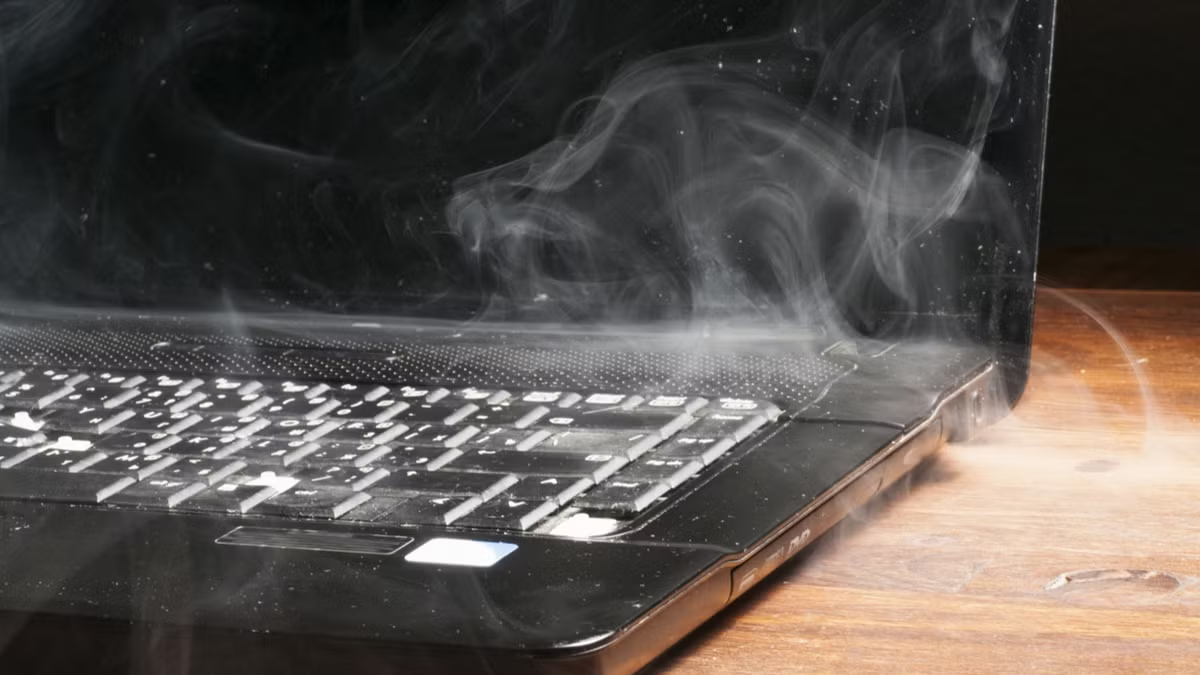
Instead, these miners hijack your CPU and GPU time to make cash for cybercriminals. They’re not like usual malware that steals your data or wrecks your files. They run silently while you work or play, hogging processing power. If your Windows 11 PC heats up unexpectedly, your laptop battery dies fast, or programs lag out even during simple tasks, you might have a miner. These clues often slip under the radar until the system starts to really struggle.
The longer they run, the worse your system suffers—and higher your power bill climbs. Spotting these miners early can save you trouble. Because miners use tactics like process injection, code obfuscation, or masquerading as legitimate system tasks, standard antivirus software often overlooks them.
If ignored, they can not only wreck one computer but spread through networks, hitting companies or households with many devices. Getting rid of miners fast is just as important. Also, many miners sneak in harmful extras like ransomware or keyloggers, making your Windows 11 device a bigger security risk.
What Is Hidden Cryptocurrency Mining?
Hidden crypto miners quietly use your PC’s power to create digital money.
Windows 11 is a prime target thanks to its huge user base and many entry points.
Mining causes slow performance, overheating, and bigger electricity charges.
These miners dodge detection by camouflaging as normal system processes.
Removing them quickly helps keep hardware healthy and your data safe.
Knowing how to detect and remove hidden miners on Windows 11 will be key for users in 2026. Attackers keep upgrading their tricks, so understanding these threats and mastering specific steps designed for Windows 11 helps you stay ahead in this game.
New features like hardware isolation and secure boot add protection—but clever miners adapt fast enough to bypass them. Most miners sneak in through phishing emails, cracked software, or shady websites, exploiting weak spots in Windows 11 security settings. Even though antivirus updates struggle to keep pace with emerging threats, recognizing warning signs and employing tools like Task Manager and PowerShell to identify and terminate suspicious processes remains vital.
The booming crypto mining scene pushes attackers to sharpen their hidden miner malware continuously. Research from 2026 reveals unspotted miners can speed up hardware wear and tear by three times compared to clean systems.
This article zeroes in on Windows 11-specific tips: watching for odd CPU spikes, tracking stubborn unknown processes, and checking network activity that signals mining data. Clear, step-by-step removal guides use just built-in Windows tools—no need to install extra software. Plus, we help you avoid mistakes like deleting real system processes by accident.
They show which attack methods miners exploit most and how to patch them right (more or less). For detailed tech insights on Windows 11 vulnerabilities tied to cryptojacking, Microsoft’s official security advisories are solid references.
How Hidden Cryptocurrency Miners Affect Windows 11
Understanding how these miners work is step one. Step two is learning to pick them out and boot them off your Windows 11 machine confidently—a must when cyber threats keep evolving fast.
The main points
Windows 11 specific detection steps with screenshots
Manual removal via Windows Task Manager and PowerShell
Handling false positives from detection software
Detailed prevention strategies custom to Windows 11 environment
How Hidden Cryptocurrency Miners Operate on Windows 11
Hidden cryptocurrency miners slip into Windows 11 without a trace, quietly turning your computer’s power toward mining digital currency (as a rule). Cybercriminals rake in profits while you stay in the dark. They don’t appear like regular programs. Instead, they burrow deep, using your CPU and GPU to create an invisible mining rig.
Infections spread through a jumble of tricks and technical weaknesses:
Fake emails carrying attachments or links bait you into downloading the miner.
Torrents and cracked software downloads often smuggle these miners hidden inside.
Exploit kits hit unpatched Windows 11 vulnerabilities or exploit weak third-party apps to gain entry.
Malicious browser extensions execute mining scripts every time you launch your browser window.
Poorly secured networks let hackers remotely drop miners onto your machine.
Spotting these miners quickly is key. They hammer your system’s speed and open doors for more dangerous malware. Here are some warning signs:
CPU or GPU heating up even when you’re idle.
Fans spinning wildly as hardware pushes nonstop.
Apps lagging at launch, file browsing crawling.
Faster-than-usual battery drain on laptops.
Overheating warnings or sudden shutdown crashes caused by overworked parts.
Odd process names appearing in Task Manager.
Antivirus alerts—like from Windows Defender—flagging mining files.
These miners often hitch rides with malware that pilfers passwords, spies on your data, or leaves backdoors wide open. The impact isn’t just slower performance. Continuous maxed-out hardware usage speeds up wear and tear. Components are pushed beyond what typical consumers experience. That causes real damage.
Your network traffic spikes, too. Mining scripts constantly ping control servers, creating a hidden stream of data (for the most part). On corporate networks, this traffic can set off alarms, risking data breaches or regulatory headaches.
How To Detect Hidden Cryptocurrency Miners on Windows 11
Understanding miner behaviors helps Windows 11 users detect strange activity early and jump into action. Automated scanners can fail to catch these stealthy threats, especially if they slip past signature checks. Peeking into Task Manager and system logs often exposes threats lurking in plain sight. You’ll need to handle Windows quirks and weed out false positives from genuinely heavy apps.
Coming soon: hands-on commands and steps to locate and eliminate these miners, protecting both your PC’s power and your privacy. For the latest threat reports, check out detailed analysis from US-CERT.
Detecting Hidden Cryptocurrency Miners on Windows 11
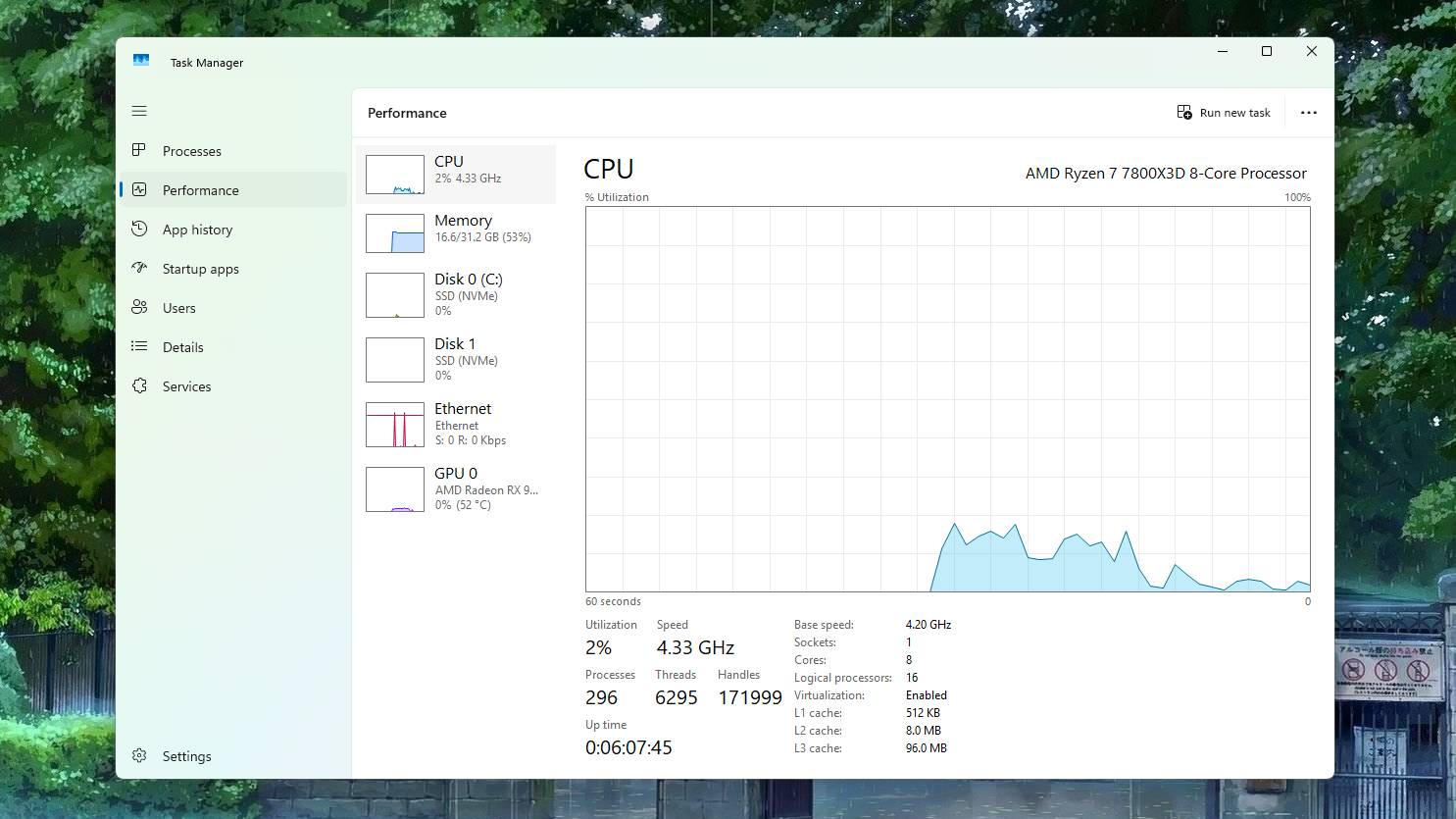
Open Task Manager to Monitor Resource Use
Hit Ctrl + Shift + Esc or right-click the taskbar and pick Task Manager. It gives you a live snapshot of CPU, GPU, and memory usage per process. This tool is your first line of defense against miners stealthily chewing up your resources.
Check CPU and GPU Usage for Anomalies
Miners often hog more than half your processor or graphics power. Look closely at the CPU and GPU columns under Processes. If something is using 50% or more and you don’t recognize it, dig deeper—miners disguise themselves with fake or confusing process names.
Use Resource Monitor to Drill Down
Search “resmon” or open it from the Performance tab in Task Manager. Resource Monitor breaks down CPU, disk, network, and memory stats with finer detail. Sort by CPU load and keep an eye on network traffic; miners might exfiltrate data on obscure ports.
Identify Unusual Network Activity
In the Network tab of Resource Monitor, watch which processes push data. Steady, high traffic going to unknown IPs is suspicious. Mining rigs often “phone home,” so these strange connections stand out against normal app chatter.
Scan Running Processes for Known Miner Names
Miners hide behind names that look legit. Keep a list handy of usual miner names like “xmrig.exe” or “minerd.exe” to cross-verify. Seeing an odd process with heavy resource use? Google it. Mining software often leaves identifiable traces.
Run PowerShell Commands to Detect Mining Software
Run PowerShell as admin. Commands like Get-Process | Where-Object { $_.CPU -gt 100 } help catch CPU hogs. Use Get-NetTCPConnection to sniff out strange network links—miners might talk to their pools through these channels.
Search Scheduled Tasks and Startup Entries
Miners don’t just run once; they embed themselves for survival. Check Task Scheduler’s list and the Startup tab in Task Manager for sketchy entries. Unknown or weird items? Disable or delete them before they reactivate after reboot.
Deploy Windows Defender and Third-Party Malware Scanners
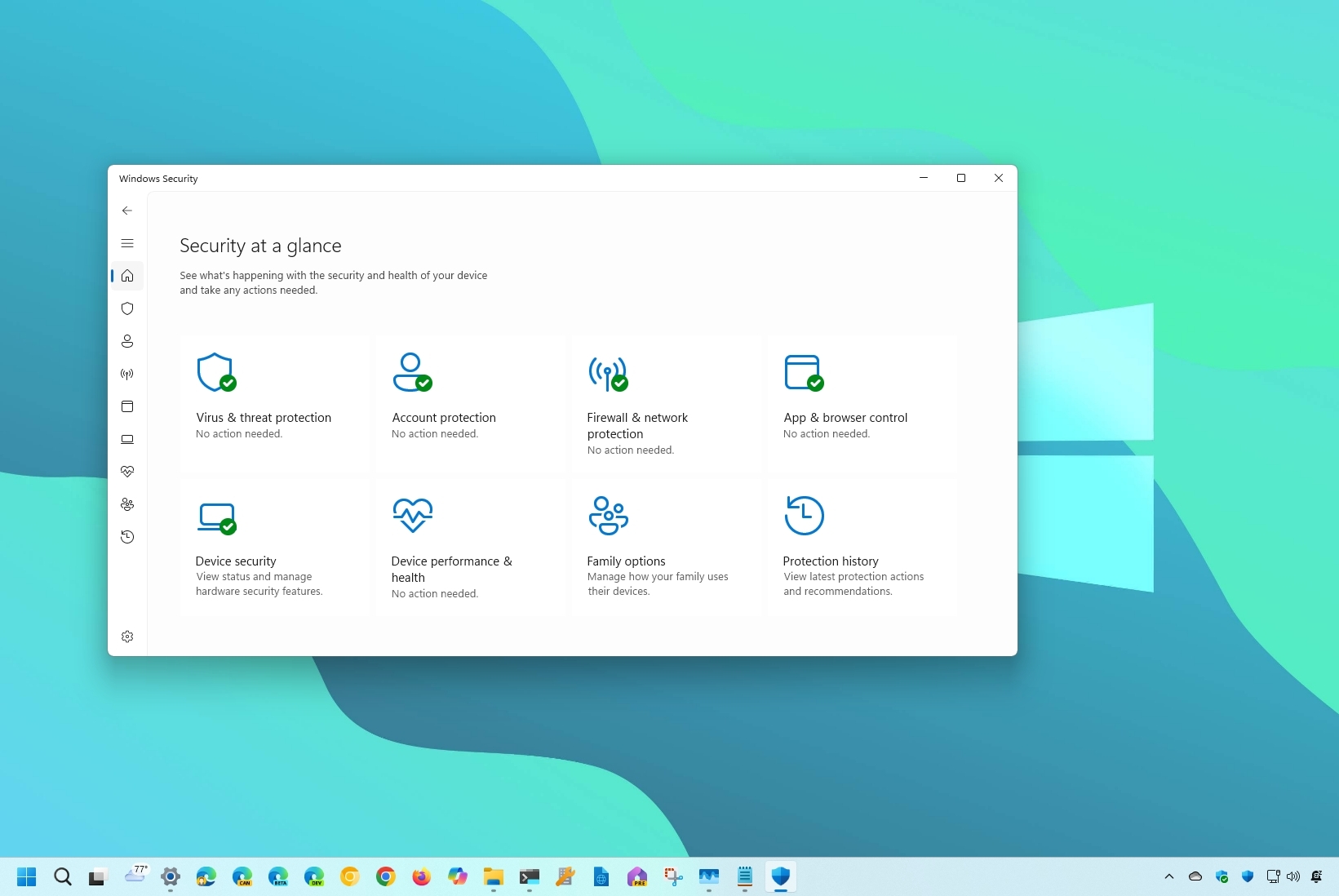
Run a full scan with Windows Defender—it updates often to spot mining malware. Then strand-test with apps like Malwarebytes or Spybot Search & Destroy. Two layers catch more miners than one solo scanner.
Monitor Event Viewer for Security Alerts
Open Event Viewer by typing “eventvwr.” Check Security and Application logs for unusual file creations, crashes, or errors linked to mining activity. Look back to when your computer began lagging—those events can hold clues.
Analyze Disk Activity for Miner Footprints
Back in Task Manager and Resource Monitor, watch disk reads and writes. Mining programs sometimes flood disks with config writes or logs. Constant spikes without an obvious cause deserve suspicion.
Use Sysinternals Autoruns for Deep Startup Inspection
Download Sysinternals Autoruns. It reveals all auto-start programs, services, drivers—even hidden registry keys. Miners sneak in here to survive reboot cycles. Clean out or disable anything that looks off.
Inspect Browser Extensions and Plugins
Some miners run through shady browser add-ons. Check extensions in Edge, Chrome, or Firefox for anything strange or unexpected. Remove unfamiliar items—and clear your browser cache while you’re at it.
Cross-Reference Running Processes with Online Databases
Use VirusTotal or Microsoft’s Sysinternals Process Explorer for suspicious processes. These platforms collect threat intel worldwide. Process Explorer also maps parent-child processes, exposing hidden mining operations buried in the process tree.
Check Windows Firewall Logs for Unusual Outbound Traffic Patterns
Enable Windows Firewall logging to catch outbound connections miners use to reach pools. Traffic hitting odd IP addresses during off-hours is a glaring red flag.
Schedule Regular System Audits
Set scripts using PowerShell or task schedulers to watch for resource spikes, unknown apps, or odd network activity regularly. Logging this data helps catch hidden miners before they entrench themselves deeply.
Beware of False Positives and Verify Manually
Not every CPU spike means a miner. High-end video editors and games demand bursts of resources. Match suspicious activity to your app schedule and research strange processes carefully. Avoid deleting critical system files by accident.
Update Windows 11 and Security Tools Frequently
Keep Windows and your security apps up to date. Mining software evolves quickly, slipping past outdated defenses. Patches close OS entry points, while fresh virus definitions catch the latest threats.
Regular use uncovers hidden cryptominers quietly draining your machine. This jagged, layered approach blends Windows 11 built-in tools with smart third-party apps and manual checks. Combining Task Manager, Resource Monitor, PowerShell inspections, startup checks, and network monitoring creates an effective strategy against hidden miners.
US-CERT guidance on malicious crypto mining flags the ongoing risks and tough detection methods expected in 2026 cybersecurity. It explains why staying alert with these tactics is key.
Detailed Steps to Remove Hidden Cryptocurrency Miners from Windows 11
Start your antivirus and let it scan every corner of your system. It checks all files and running processes, hunting for miners that slowly devour your CPU or GPU power. Spotting them early saves you from serious slowdowns.
Sometimes a miner resists removal. When that happens, put Windows Defender’s offline scan to work. It restarts your PC into a special environment where hidden miners lose their cover and can be wiped out cleanly.
Hit Ctrl+Shift+Esc to open Task Manager. Look for odd processes burning CPU or GPU cycles without clear reason. Strange or random names are red flags. Right-click and pick End Task to shut down these suspect programs immediately.
Head to folders like C:\Users\[YourUser]\AppData\Local, C:\Users\[YourUser]\AppData\Roaming, and C:\ProgramData. Spot recently changed or unfamiliar folders—miners often hide there. Back up what’s important, then delete the strange stuff.
Miners sometimes creep in as browser extensions, running scripts unseen. Reset your browser or remove extensions you don’t recognize, one by one. Notice how your browser’s speed and behavior change after each removal.
Open Task Scheduler (taskschd.msc) and scan for unusual tasks that trigger scripts or unknown apps. Disable or delete scary entries. Don’t forget the Startup tab in Task Manager—turn off any suspicious apps that launch on boot.
Type Get-Process | Sort-Object CPU -Descending | Select-Object -First 10 to see the biggest CPU users. Stop any shady service by running Stop-Service -Name [serviceName]. This digs deep for miners lurking beneath the surface.
Launch Disk Cleanup or a trusted cleaner to erase temp files, browser cache, and downloaded program files. Miners stash restart helpers here. Cleaning these files locks down many sneaky comeback attempts.
Open Registry Editor (regedit) only after backing up the registry. Hunt for suspicious startup keys under HKCU\Software\Microsoft\Windows\CurrentVersion\Run and HKLM\SOFTWARE\Microsoft\Windows\CurrentVersion\Run. Delete entries that relaunch mining software. One wrong move here can crash your PC—handle with care.
Hold Shift and pick Restart. Go to Troubleshoot > Advanced Options > Startup Settings, then reboot into Safe Mode with Networking. Safe Mode cuts down what runs, making it easier to spot and delete stubborn miners that slip past normal defenses.
After cleanup, make sure Windows, your apps, and antivirus signatures are all current. Malware exploits out-of-date security holes—patches plug these cracks and reduce fresh infections.
Watch your CPU and GPU loads in Task Manager for several days. Small, unexplained spikes could mean leftover miners or false alarms that need a closer look.
If miners cling on stubbornly, back up your critical files and do a factory reset or clean reinstall. This wipes hidden malware completely and gives you a fresh start.
Tighten controls under Settings > Privacy & Security. Block apps from unknown sources and use the firewall to halt strange outgoing connections. This acts as a shield against silent miner implants later.
Learn typical mining symptoms like sudden overheating, sluggishness, or spikes in network traffic. Set alerts for unusual resource use and keep your scanning tools fresh to catch miners before they burrow in deep.
Blending automated watches with manual checks raises your defense against sneaky miners and false positives. This layered plan hands control back to you, giving a fighting chance against mining malware buried inside Windows 11. Follow these steps carefully to root out hidden cryptocurrency miners from Windows 11 without wrecking your files or settings. Windows Defender and PowerShell scripts remain solid weapons in this fight. Official guides and expert forums help decode strange process behavior, so you don’t remove vital files by mistake.
Staying alert to new mining tricks and keeping detection software updated cuts damage and downtime from crypto miners lurking in Windows 11 machines. Microsoft’s official docs dive deep into safely using PowerShell and Defender tools against tough malware.
Preventing Future Cryptocurrency Miner Infections on Windows 11
Keep Windows 11 up to date with the latest patches from Microsoft. Hackers hunt for weak spots, and each update plugs one.
Turn on auto-updates for all apps, especially browsers and plugins. Old versions open windows for sneaky mining scripts.
Never download software or files from shady sites. Stick to official vendors and trusted sources to dodge miner malware hidden in downloads.
Set Windows Defender or your antivirus to scan in real time for mining signatures. Defaults often miss quiet miners running in the background.
Check your Windows Defender Firewall rules regularly. Miners need network links to talk with their control servers.
Use PowerShell’s execution policy to block unexpected script runs. Lots of miners slip in through hidden PowerShell commands.
Lock folder permissions on places like AppData and Windows Temp where miners stash files. Turn on security logging to catch odd changes fast.
Watch CPU and GPU usage with Task Manager or Process Explorer. If loads spike when you’re not doing anything, it’s usually a bad sign of mining.
Run scans often using several malware tools, including ones aimed at miners. Different scanners catch different tricks, so layering defenses wins over relying on just one.
Disable features you don’t use—Remote Desktop Protocol (RDP) and Windows Remote Management (WinRM) are popular backdoors for attackers installing miners.
Set up network monitors on your router or PC. Strange outgoing connections to mining pools mean trouble. Block them to cut off the miner’s command link.
Whitelist programs so only trusted apps can run. This stops unauthorized miners sneaking in under the radar.
Back up important files regularly with version snapshots. If miners corrupt your system or files, you can roll back without reinstalling Windows.
Train users to spot phishing and tricky scams that deliver hidden miners in malicious emails and links.
Think about endpoint detection and response (EDR) tools that hunt for mining patterns and strange system behavior beyond usual antivirus scans.
Constant vigilance plus strong blocks catch miners early—before they slow your PC or spike your power bills. This layered defense chips away at weak points where miners sneak around on Windows 11. Miner attacks keep changing, but this setup resists their tricks aimed at Windows machines.
Common Questions About Hidden Cryptocurrency Miners on Windows 11
Effective Tools for Detecting Undisclosed Miners
Spotting hidden crypto miners on Windows 11 takes the right tools. Task Manager’s detailed view can show unexpected CPU and GPU spikes. These surges often come from mining processes running in the background. PowerShell commands like Get-Process and Get-WmiObject list all active tasks and their resource use, helping you sniff out suspicious activity.
Steps to Remove Cryptojacking Malware Manually
When you find a hidden miner, stop it via Task Manager first, then delete any startup entries linked to it. PowerShell can dig deeper—use it to find and remove rogue scheduled tasks or services tied to mining. Don’t forget to scour system folders and the registry with Regedit; leftover mining scripts often auto-run when Windows boots.
Impact of False Positives on Detection Accuracy
Sometimes, detection tools mistake normal apps or system processes for crypto miners. These false flags happen because some programs push high CPU or GPU loads that look like mining. Before deleting anything, check flagged processes against trusted software lists and verify digital signatures to avoid wrecking legit apps.
Prevention Strategies for Future Cryptojacking Threats
Stopping miners before they start is key to keeping your system safe. Keep Windows 11 and your antivirus software updated regularly. Lock down user permissions, shut off remote access you don’t need, and steer clear of sketchy downloads. Watching your network traffic can catch weird outgoing data that’s typical of miners chatting with crypto servers.
Myths About Mining Software on Windows 11
People often think only old or unprotected Windows 11 installs get hit by hidden miners. Even brand-new setups can catch miners if users skip security basics. Another myth says antivirus alone blocks all mining malware. In reality, crafty cryptojacking threats often dodge detection unless you add extra layers like task monitoring and manual checks.
Signs That Indicate Hidden Mining Activity
These are classic signals something’s mining crypto on your machine. Windows 11’s Performance Monitor and Resource Monitor track CPU and GPU loads, especially when your PC should be quiet. Spotting these clues early lets you act fast.
Role of Windows Defender and Third-Party Antivirus Solutions
Windows Defender provides basic defense against cryptojacking with signature updates and real-time scanning. But many third-party antivirus apps come with special heuristic engines geared for mining malware’s tricky tricks. Running layered security tools bumps up your chances of detecting sneaky or new miners.
Importance of Regular System Monitoring and Updates
Updating Windows 11 patches holes miners can exploit. Checking tasks via Task Manager and auditing scheduled tasks through PowerShell often uncovers hidden scripts before they spread. Set scans and reviews on a schedule—that routine catches covert miners early. Keep an eye on hardware stats too, for odd resource use.
Windows 11 users gain real power by mastering these tips. You can detect, remove, and block cryptojacking threats without bringing your system down. For deeper dives on trusted process checks and Windows security controls, Microsoft’s official docs are solid references. See Microsoft Defender Antivirus Technical Reference for expert advice on defending Windows from evolving attacks.